


Forgot my Wi‑Fi password, how to recover?
to read 6 min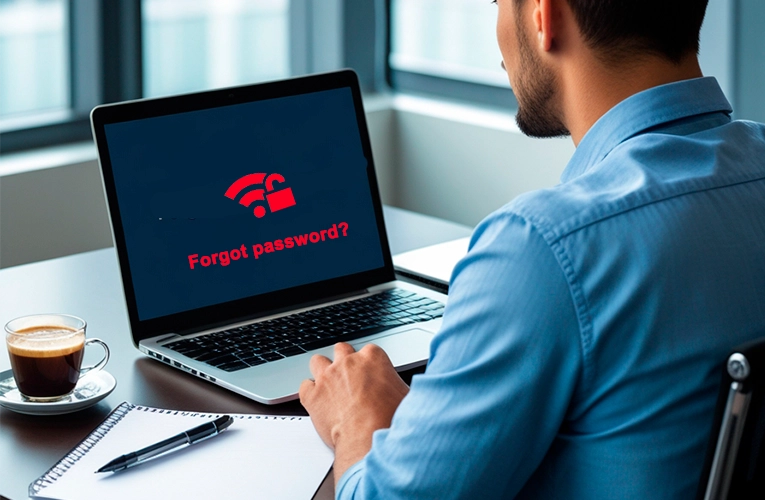
How to quickly find out a Wi-Fi password?
Everyone knows the situation: you need to connect a new device to the Internet, but the password is gone. You are sure that you saved it once, probably even somewhere in your phone... or on a piece of paper that has long been lost. Trying to recall it doesn't help, and the Wi-Fi you need isn't working.
So what should you do? Contact the provider? Reboot the router? Is there any way to find the password without assistance? In this article, we'll look at all the options: from how to log in to the router or how to completely reboot it to where you can find the password on your phone, tablet, or computer.
Difference between a router password and a Wi-Fi password
Router password — is a key that you need to access the settings of your router. It is usually indicated on the device's label (admin) or created by yourself. You can use it to log in to your router and change your network settings, such as your name, password, and other settings. If you don't remember it, the only way out is to reset the router to factory mode and set it up again.
From Wi-Fi — is exactly what you enter on your phone, laptop, or other device to connect to your wireless network.

Internet without power
GPON - speed and reliability!
High speed, reliable signal and work even without light. Connect GPON and stay online in any conditions!
Read moreInformation on the router label
If your network has a standard name (for example, “TP_Link” or “Xiaomi”), then you can most likely find the password right on your router. It usually contains a standard network name (SSID) and a password (PIN) that is used to connect to your home internet. If your network has a unique name, then you should try other methods.
How to find out the Wi-Fi password on my phone/tablet?

- Sharing a password by QR Code/AirDrop
On Android devices, you can easily share your password by QR code. To do this, simply go to the Wi-Fi settings, tap on your network, and select the share password option. The other person can then scan the code and connect to your network without having to enter the password manually.
On iOS devices, AirDrop is a convenient way to share a password. Simply select your network in Wi-Fi settings, click Share, and select the contact you want to share your password with. This way, another device can easily connect your device to your home Internet without any problems.
- Checking the password through the network settings
If you go to the Wi-Fi section and click on your network, you will see the password hidden under the symbols. To open it, simply tap on the password again and it will be displayed on the screen.
- List of the saved networks
Go to the Wi-Fi section of your device's settings and then go to “Advanced settings”. Here you will see the Saved Networks section, where you can see all previously used Wi-Fi. By clicking on each of them, you can view not only the name, but also the password and everything else.
How to find out the password on a laptop/PC?

- Through the “Network and Internet” settings
Windows: Click “Start” and in the search box, type “Wi-Fi settings”. Next, at the bottom of the page, click "Network and Sharing Center". Select the name of your current wireless connection and click on “Wireless Network Properties”. Go to the Security tab and check the box next to "Show symbols".
MacOS: On MacOS, you need to go to the “System” settings, then to “Wi-Fi”. Select your connected network, and you will see its parameters, including the password (if you have already connected before).
- Use the command line
Windows: Open a Command Prompt (press Win+R and type cmd), then type the following command:
MacOS: Open Terminal and enter the command:
Instead of WiFiName, type the name of your network and you will see the password. On MacOS, the system will ask you to enter the administrator password to confirm.
What to do if the password is not recovered?
If all attempts to recover your password failed and your Wi-Fi is still down, don't worry. There are several options:
- If you have a device connected to Wi-Fi, or you can connect a PC/laptop by cable, you can go to the router settings and find the password in the “Wireless settings” section.
- In case of failure of all attempts, you need to reset the router to the factory settings. Press the Reset button on the router itself. This will restore all the settings to the default ones, after which you will need to set up the router again.
We recommend using the detailed instructions for configuring the router on the website of the Briz Internet provider.
How can fiber optic internet and GPON help?
Sometimes the issue is not only a forgotten password, but also the internet connection itself. If you're dealing with frequent interruptions or slow speeds, you might want to consider fiber optic internet. GPON technology is the best option for reliable and high-speed home internet that works when there is no power.
Equipment
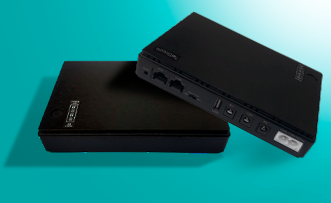
UPS - internet without interruption
Briz equipment with an uninterruptible power supply (UPS) for non-stop access to the Internet.
Read moreBut that's not all! When you connect to the GPON Internet, your router receives dynamic settings. So, if you forget your password, there's nothing complicated. Just reset the router to the factory settings. It will automatically work on the standard settings that can be found on the device label.
Receive information about promotions and news from BRIZ to your email address

Be the first to comment