


How to improve home internet: life hacks for configuring a router and connecting fiber optics
to read 10 min
Introduction
In today's world, a Wi-Fi router is the heart of your home network. It not only provides Internet connection, but you still need it for all the devices in your home - computers, smartphones, tablets, smart TVs, and even household appliances.
But many people sooner or later face issues with the network. If you want to figure out your router settings, have a slow internet connection, weak Wi-Fi, or other issues related to the router's operation, we are ready to help. In this article, we'll introduce you to the new features of your router, share simple tips, and be sure to improve your internet experience today!
Technical tips
1. Turning off your router
Your router works day and night to provide internet connection at any time, but even it needs to rest. When the device is constantly running, it can get heated, which can affect its performance. Therefore, if you plan to leave your home for a long time, for example, going to work or going on vacation, turn off the router.
It may seem like everyone knows how to reboot a router, but in fact, many users commit one popular mistake. Turning the router off and then back on again is wrong, and 10-15 seconds is simply not enough time to reboot. Because of this, your router may freeze or work incorrectly.
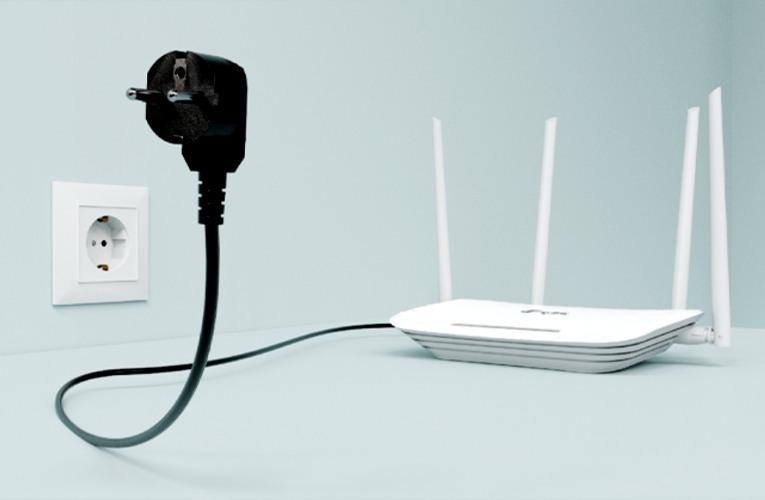
It is useful to periodically reboot the router by unplugging the power supply for 1-2 minutes. This allows the device to restore optimal settings, reduce the risk of malfunctions, and avoid many technical difficulties.
Be careful with the buttons on the back of the router, especially with the Reset button. One wrong press and your router will return to the factory settings, which means you should completely re-configure it from scratch.
2. Reflash the router
Sometimes your router may begin to malfunction. One possible reason could be outdated software.
To update the firmware, you need to find the correct version for your router model. To do this, just find out the revision number of the device, which is usually located on the bottom panel of the router or in the web interface of the router.
Please note that different revisions may have different hardware capabilities, so it is important to choose the correct firmware version.
You can download the latest firmware version from the manufacturer's website and update it manually through the admin panel. Many modern routers generally have automatic firmware updates, which greatly simplifies the process.
You can learn more about how to safely and efficiently reflash your router in our article here.
3. Backup power supply
Using an uninterruptible power supply is very convenient, especially when there are power outages or complete blackouts. Simply connect your Internet devices to a power bank, battery, UPS or charging station, and your Internet will stay with you in the future. To find out how to do this and what options are available, we suggest you read our article.
How can I increase the router's operating time from the UPS?
- You can use a router with a lower voltage. If you have a 12-volt router, which is quite power-hungry, you can connect a 9-volt router during a power outage. In the event of a power outage, such a router will last longer, and since there won't be many other networks around, it will work just as well.
- Temporarily disable some functions. For example, you can turn off the 5 GHz network and reduce the power of the Wi-Fi transmitter. This will decrease power consumption and allow the router to run on backup power for longer.
If your router has this feature, you can turn off the LEDs (indicators) to save battery power. It is also worth noting that routers do not always operate at full capacity. When there is no active traffic, they can reduce their power usage by two to three times, which extends the battery life.
Just don't forget to return all the settings after the lights come back on!
How to improve Wi-Fi
1. Proper placement of the router
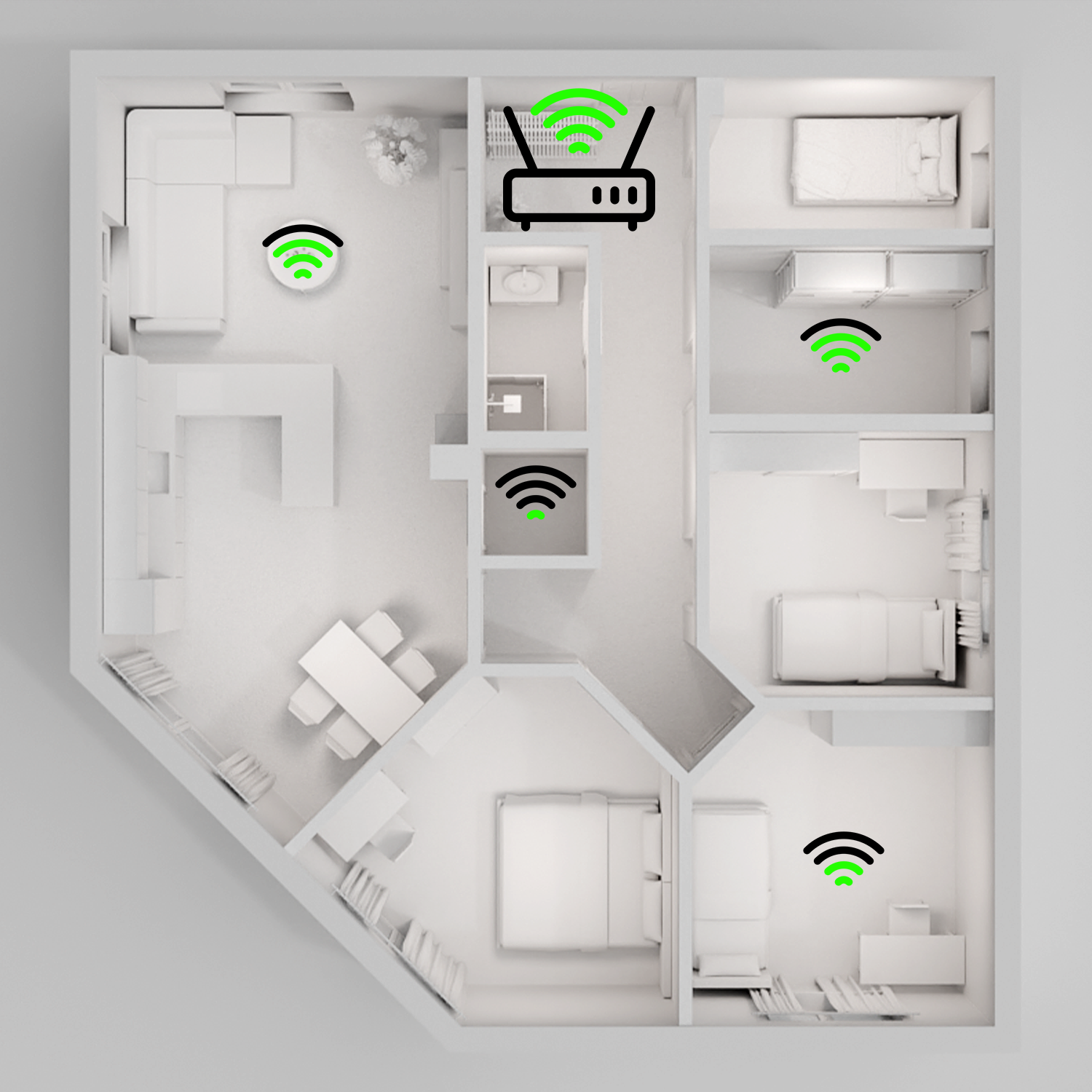
The place where you install your router can have a significant impact on the quality and speed of your home Internet. The best place for it is in the middle of the apartment or house, at a height. This will help the signal to spread evenly throughout the room.
It is best to keep the router away from walls, as they can significantly weaken the signal. Also, try not to place the router low, such as at floor level, or near appliances such as microwaves, refrigerators, and televisions, as these devices can cause electromagnetic interference.
Mirrors and large metal objects can reflect the signal and create so-called “dead zones” where the Internet will not work at all.
2. Wi-Fi network security
You do not need to use regular passwords such as “1111111” or “12345678” to protect your Wi-Fi network. Although such passwords are easy to remember, they are even easier to guess or hack. Therefore, it's important to create a unique and complex password for your Wi-Fi connection to make sure it's secure from unauthorized access.
Use a password that includes uppercase and lowercase letters, numbers, and special characters to protect your network. For example, you can use something like “BRIZ!WiFi!Secure123”. It is important to make sure that your equipment uses a modern encryption standard, such as WPA3 or WPA2.
Please note that not all devices support WPA3 encryption. Before installing it, make sure that your device is compatible with it. Otherwise, you may have difficulty connecting if some devices do not support this standard.
If you share your password with someone or forget that someone already has access to your network, your Wi-Fi can be used by unauthorized persons. This can directly affect your internet speed.
How to see who is connected to Wi-Fi (using old and new generation TP Link routers as an example):
1. Open a web browser and enter the IP address of your router (usually 192.168.0.1 or 192.168.1.1).
2. Log in to the control panel using the administrator password.
3. Next, go to the Connected Devices section on the main screen.
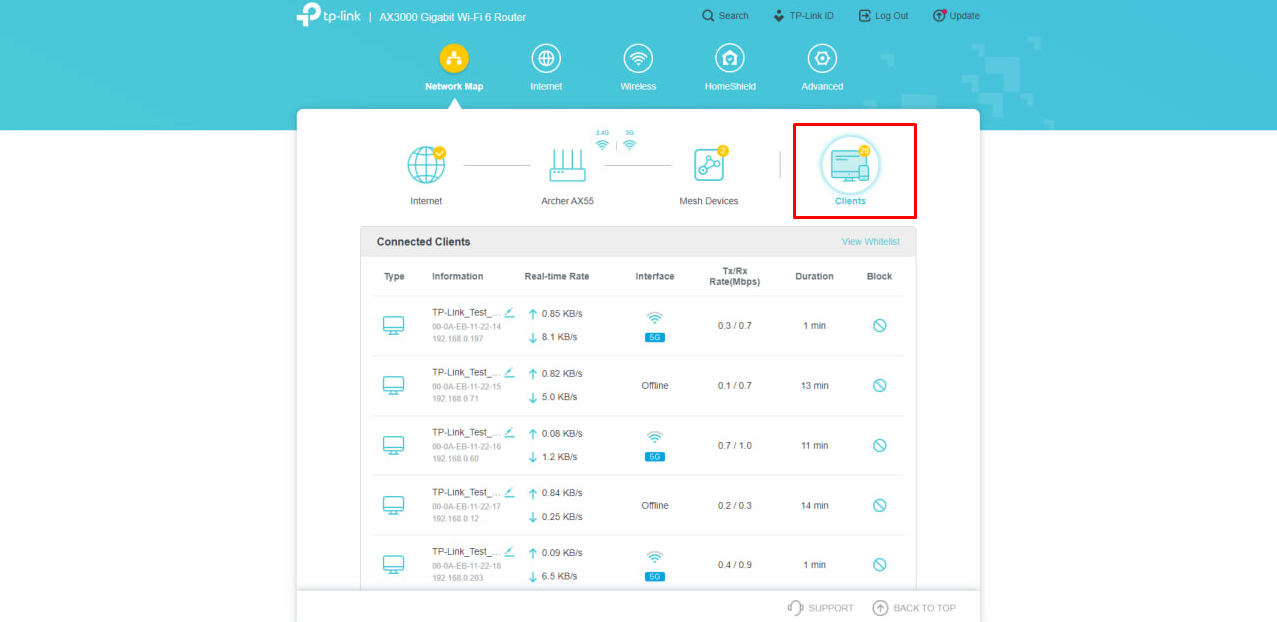
If the router is an old generation, then you need to select the “DHCP” section and select “DHCP clients”.
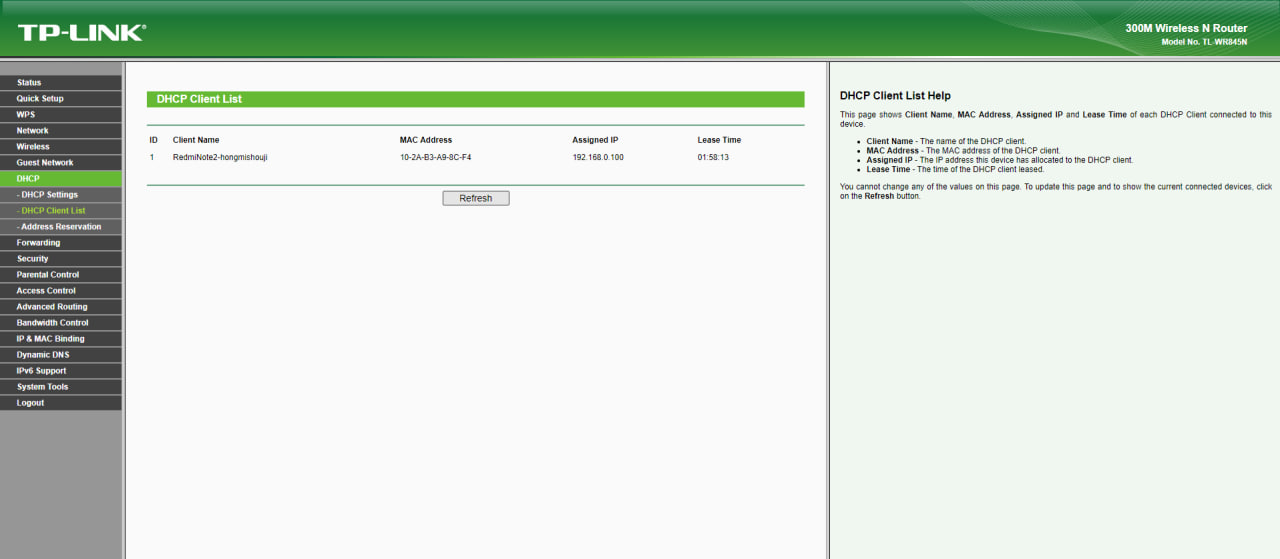
4. Review the list of devices that are connected to your network. If you see unfamiliar devices, you should change the password to a stronger one.
3. Using 5 GHz
The 5 GHz radio frequency is the current Wi-Fi standard that provides a faster and more stable Internet connection than 2.4 GHz, which is crowded and often used by other devices, causing interference.
5 GHz offers more channels and less interference, which is great for improving connection speed and quality.
However, you should keep in mind that the 5 GHz signal has a limited range: the further you are from the router, the weaker the signal will be. Therefore, to get the best results, you should place your devices closer to the router.
We also remind you that if you log in to the router and only one network is displayed, you need to disable Smart Connect.
To check if your router supports 5 GHz and if this feature is enabled, do the following: (using TP Link routers as an example)
- Open a web browser and enter the IP address of your router (usually 192.168.0.1 or 192.168.1.1).
- Log in to the router's web interface using the administrator password.
- Go to the wireless network settings section (“Wireless” or “Wireless Network”).
- Check for the 5 GHz option. It must be enabled, and the Wi-Fi name must contain the suffix “_5G”.
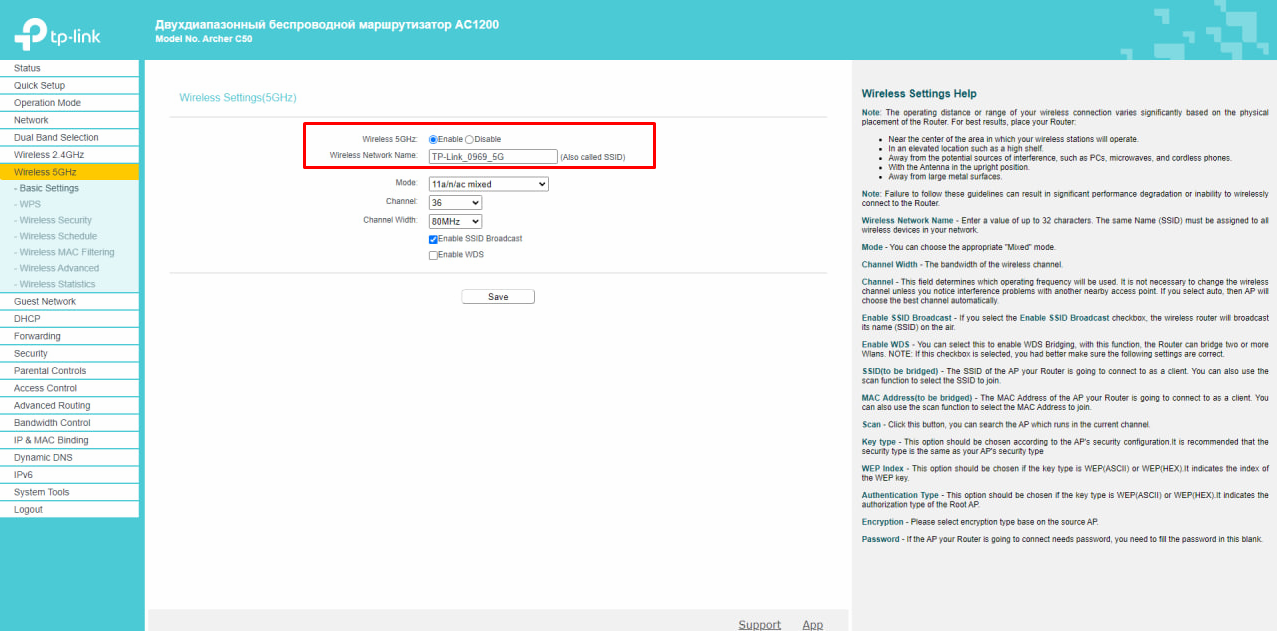
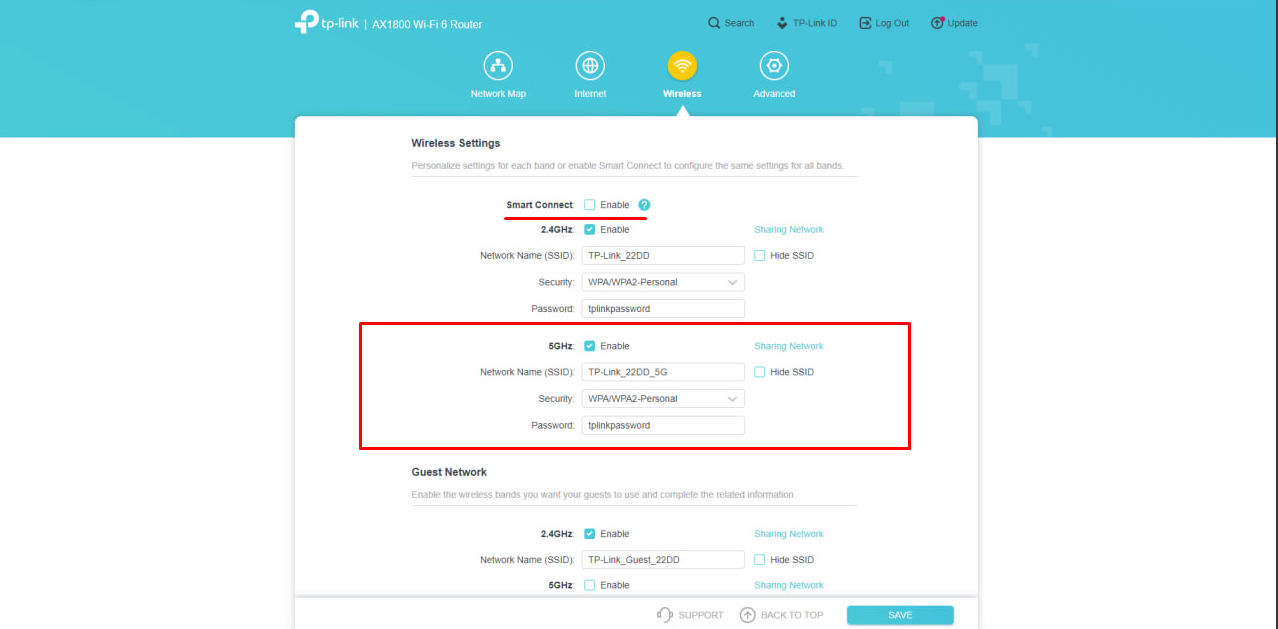
Please note that your devices, such as phones, tablets, TVs, and laptops, must also support 5 GHz. If your device does not support it, the 5 GHz network will not appear and you will not be able to take advantage of it.
If your router doesn't support second-band technology, we suggest you check out the range on our website and the TP Link C24 and TP Link AX23 router reviews .
4. Change the router channel
If you can't use the 5 GHz frequency, don't worry — you can still get the maximum from your 2.4 GHz router. The thing is, there are other routers operating near you that use the same channels to transmit data. This can create interference and degrade signal quality.
Using the Wi-Fi Scanner utility, you can easily find a free channel and manually occupy it. It shows all the channels in use around you and helps you find the channel with the least or no traffic.
If you choose this channel, you can avoid interference from other networks and get a more stable and faster connection for your devices.
How to do it?
- Install the Wi-Fi Scanner program on your computer or smartphone: it doesn't have to be called that because there are many different versions of the program. We can offer you: Wi-Fi Scanner (Windows), Wi-Fi Analyzer (Android).
- Open the program and let it do what it needs to do. It will check all Wi-Fi networks in your area and show you which channels they are using.
- Analyze the results. You will see a list of channels used by different networks. Try to find a channel that is not too busy or completely free. This is the best option for tuning in.
- Next, you need to enter the router settings. Go to the wireless settings section. There you will find the option to change the channel. Select the one you need and save the changes.
- After you have changed the channel, you will need to reboot the router. This will make it work on the new channel.
5. Increase/decrease transmitter power
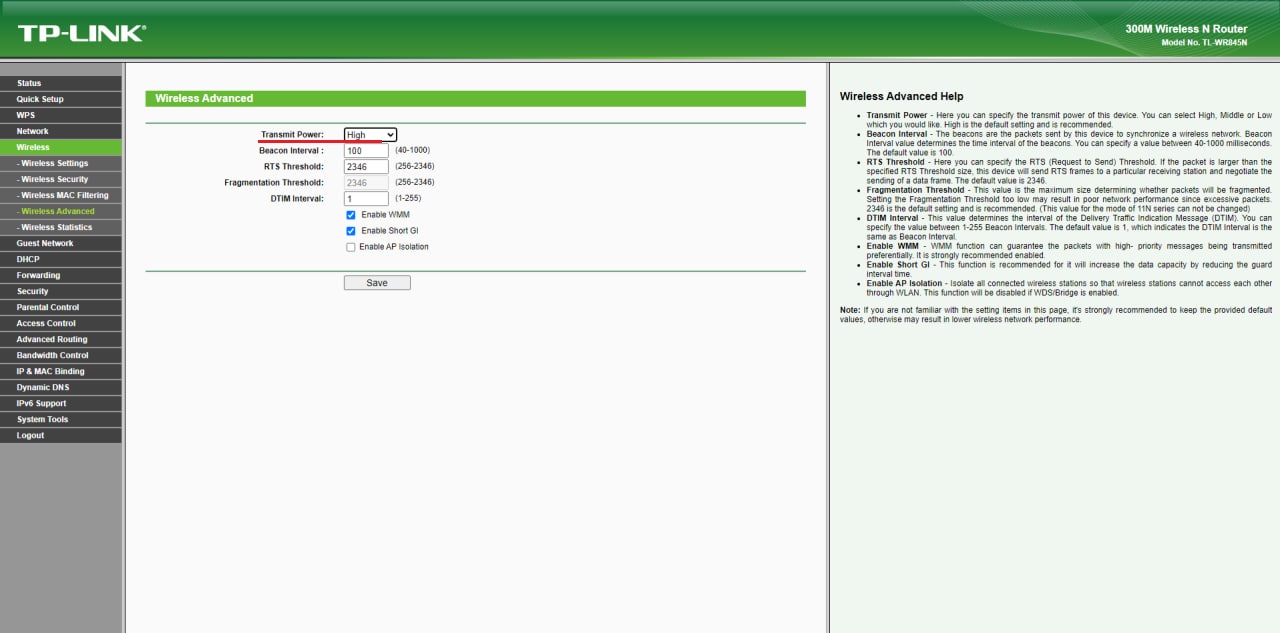
You might think that increasing the power of your transmitter is the best way to improve coverage, but it's not always the best solution. While setting it to “High” boosts your Wi-Fi signal strength and extends your range, it can also cause unnecessary interference, especially in high-rise buildings where there are always many other networks nearby.
Start with “Medium” or even “Low” power. This will help reduce the risk of interference and collisions, which will improve the quality of the Wi-Fi network. The Wi-Fi coverage area may indeed decrease slightly with lower power, but the signal will become more stable.
How to increase the transmitter power (using the TP-Link router as an example).
- Open a web browser and log in to the router's admin panel (usually at 192.168.0.1 or 192.168.1.1).
- Log in to the router control panel using your administrator credentials.
- Next, go to the “Wireless” section and select “Advanced Settings”.
- You need to find the “Transmit Power” option.
- You will usually see options such as “Low”, “Medium”, and “High”. Choose the one you need, save the settings, and reboot the router.
Useful functions
1. Parental control
You don't have to take away your kids' phones to protect them from inappropriate content. Try using the parental control feature on your router. It's an easy way to protect your child from inappropriate sites without constant monitoring. You can control access without interfering with your child's use of a personal device.
How to set up parental controls (using TP Link router as an example)
- Go to the control panel of your router. Open a web browser and enter the IP address of the router (usually 192.168.0.1 or 192.168.1.1). Log in with your username and password.
- Go to the section called “Parental Controls”. You can add a control by clicking on the “+” button, add a device via the MAC address and name it. Next, select the resource to be restricted and follow the instructions.
- Save the changes and check the filters by trying to access the blocked sites from your network.
2. Remote access to the router
Remote access to your router is very convenient because you can control and check your router through your phone from anywhere in the world that has an internet connection. The setup is quite simple, and once you do, you'll find that remote login on most modern router models is very easy.
It's also worth noting that remote access to the router is carried out using its IP address, so we recommend that you sign up for the additional Static IP Address service. If you leave the IP address dynamic, you will have to find out its value every time the router is rebooted to log in to the router, which may not always be convenient.
Setting up remote access on the example of TP Link routers:
TP-Link ID cloud service. The whole process is simple because the connection is made through a cloud server. You can control the device from your phone or other device using the TP-Link Tether app (Android / iOS).
Keep in mind that only newer TP-Link models have support for cloud features. If your router is one of the latest models, then you can safely go and check the possibility of such a setting.
In the router settings, you need to open (depending on the model, it may differ):
- Option 1. Security - Remote Management section. You need to specify the IP address and virtual port to communicate with the router.
- Option 2. Go to the System Settings - Administration section. Find the item for Remote Management and enable it. Next, you can specify a virtual port for management and specify a specific device from which you can log in.
3. QoS function
QoS, or Quality of System, is a technology that makes our online life more comfortable without us even noticing. Simply speaking, it manages traffic on your home network, giving more value to important devices and applications. In today's world, where all smart devices work simultaneously on the same network, such a system is a necessity.
Just imagine a smart home where every device is fighting for internet access: video surveillance cameras are streaming video, your computer is downloading large files, and you're trying to play an online game at the same time. If you don't have the right organization, you're unlikely to get smooth gameplay or a high-quality video stream. This is where QoS comes into play.
With this feature, you can prioritize your video cameras to get enough traffic to transmit clear images, your TV to watch high-quality movies, and minimize lag when playing games through your computer or game console. It's worth noting that simpler devices, such as smart light bulbs or thermostats, don't need high-speed internet, so you can dedicate the rest of your network to them.
If you configure QoS for each device in your smart home, they will all work at maximum efficiency. Even when the network is active, every corner of your home stays connected and functions properly, whether it's a security camera, streaming service, or voice assistant.
4. Blocking ads through your router
One way to block ads at the network level is to change the DNS servers on your router to be like Adblock or AdGuard. However, it should be noted that we do not recommend doing this, as it may cause some difficulties.
Third-party DNS can affect the stability of your internet. It may fail or become unavailable, causing you to lose access to the Internet on all your devices.
In addition, using such DNS servers can also slow down your internet speed. The response time of these servers can be much slower, especially if they are located far away from you. This can lead to slow page loads and lower overall network performance. It's also worth considering that some sites may not work properly.
You don't have to change DNS at all and still be protected. Install ad blockers on each device and monitor their performance yourself.
5. Setting up your router for online gaming
Some modern and expensive routers (such as the ASUS ROG Rapture or TP Link GX) have a “Game Mode” mode that improves network performance. It ensures that gaming traffic is prioritized, which helps reduce latency and make gaming smoother, especially when many other devices are using the internet.
To learn more about reducing ping and improving your gaming experience, check out our article on ping for gamers. There you will find tips to help improve your gaming experience.
Conclusion
By following our tips, you can get a lot more out of your home Wi-Fi network. Not only can you use useful features such as parental controls or remote access, but you can also improve the quality of Wi-Fi and its coverage in your home. Even the simplest technical recommendations can make a big difference today. Customize your network with us!
If you need a new router that supports all the latest features, check out the offers from our company.
Receive information about promotions and news from BRIZ to your email address

Be the first to comment