


How to ensure stable internet in your apartment: 5 tips
to read 7 min
- How to set up your home internet and Wi-Fi router so that everything works perfectly
- Tip #1. Connection by GPON technology
- Tip #2. How to choose a router for home internet
- Tip #3. Correct location of the network equipment: why it is so important
- Tip #4. How to choose the right internet tariff plan
- Tip #5. Setting up your router for stable internet
- Perfect home internet: what is important to remember
How to set up your home internet and Wi-Fi router so that everything works perfectly
Just think about it: how many devices are currently connected to your Wi-Fi? Smartphones, laptops, a TV, maybe even a robotic vacuum cleaner. A modern apartment is a real kingdom of gadgets. Stable internet for the home has become as necessary as electricity or water. But when Wi-Fi suddenly slows down, the speed of the home internet drops, and the signal disappears, everything turns around.
Happily, configuring high-quality home internet is not magic, but simple adjustment. From choosing the right tariff plan to correctly configuring your router, all of this has an impact on how your router will handle the workload.
Our simple but effective tips will help you learn how to connect home internet, set up internet in your apartment, improve speed, and fix problems with your network forever.
Tip #1. Connection by GPON technology
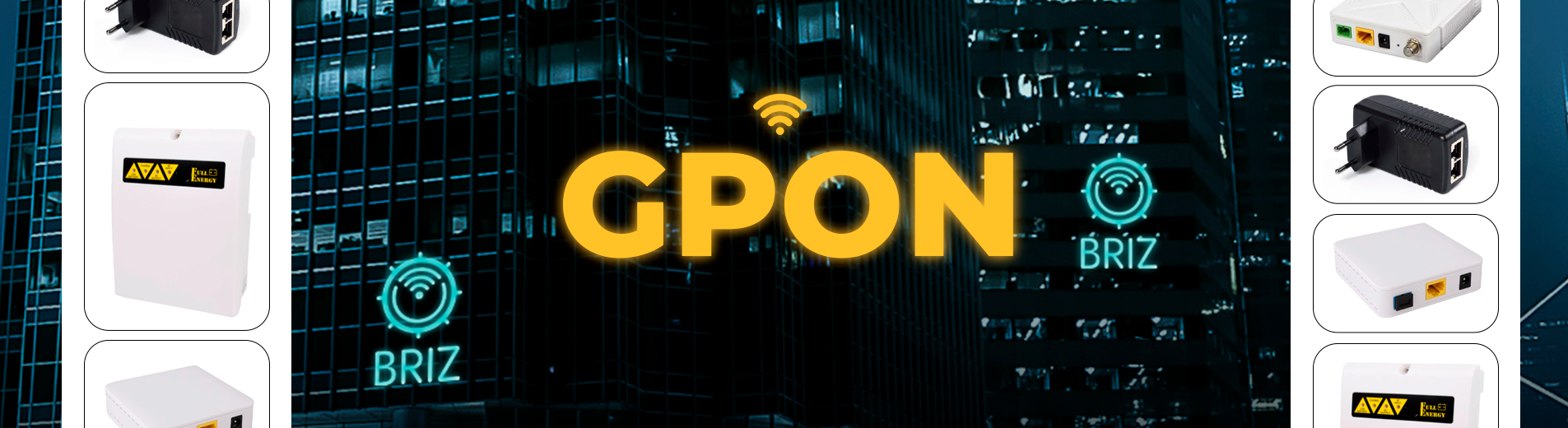
If you want to create a really stable home Internet that will work without failures, even when many devices are connected, then GPON is your best choice.
Why is GPON the best solution for you?
- Speed: GPON provides constant internet access even if you are using many devices at the same time. Whether it's a laptop, smartphone, TV, or game console - you get high speeds and no delays with GPON.
- Energy independence: Internet without power is a real lifesaver, especially for those who work remotely or use the Internet for important business. GPON allows you to connect your home Internet so that it works even during blackouts.
- Universality: GPON allows you to receive not only the Internet, but also cable TV or IPTV.
GPON is not just fast optical Internet. It is a technology that will provide you with maximum comfort and reliability. With us, you can always connect to the GPON network in Odesa and Odesa region.
Tip #2. How to choose a router for home internet
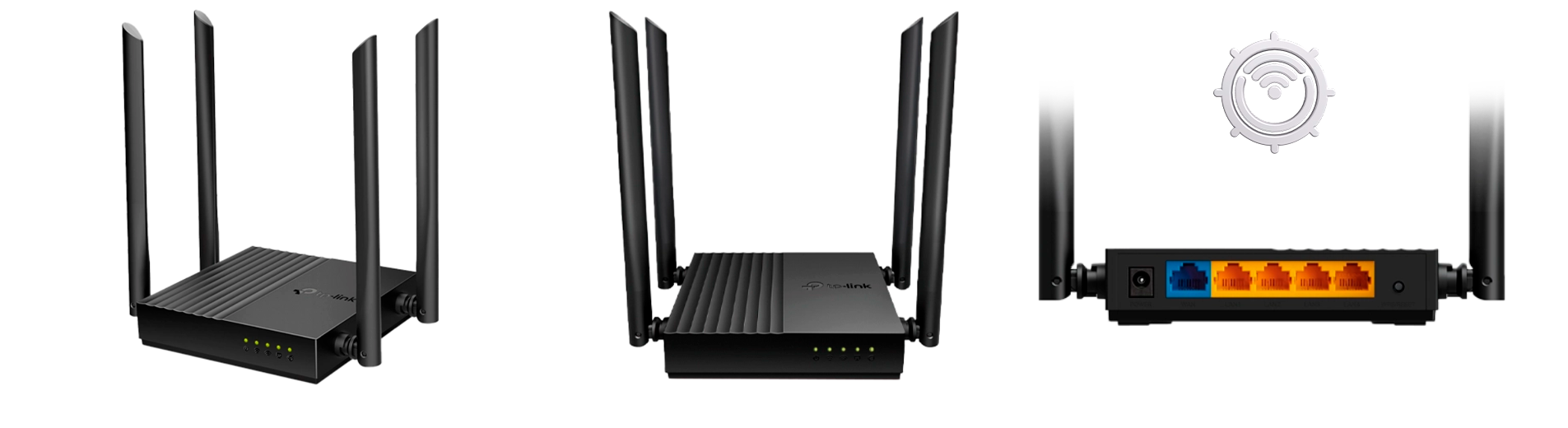 Now that you've decided how to connect your home Internet,, it's time to switch to the local network. Or, more precisely, to the choice of the main device that will manage your data and send it between all of your devices. Without a high-quality router, you won't be able to enjoy a stable Internet connection, even with a GPON connection.
Don't forget that for many users, a router is just a device that stands on a shelf somewhere and, in general, does its job until the Internet drops out. If you're the type of person who doesn't like to delve into details and just wants a stable Internet connection for home, then simple and reliable routers from trusted global brands such as TP-Link, Xiaomi, Netis, Mercusys, and similar ones will suit you. They don't require any complicated settings, work perfectly, and provide a stable signal for everyday needs such as surfing the Internet, watching videos, and using several gadgets at the same time.
But there is another category of users - experts or just people who like to customize every detail, optimize and test various router functions. For them, it's important to have a device that gives them full control over the network.
In these situations, routers from brands such as Mikrotik, Kinetic, Asus, Linksys, and others are suitable. These routers provide more options for in-depth optimization and customization.
Remember what to look for when buying a router:
- Don't choose some cheap options or little-known brands.
- Now it is worth considering only a 2-band router.
- Support of Wi-Fi 5 or Wi-Fi 6 - it affects the speed of the home Internet and the stability of the connection.
- Availability of MESH, MU-MIMO, Beamforming technologies.
Tip #3. Correct location of the network equipment: why it is so important
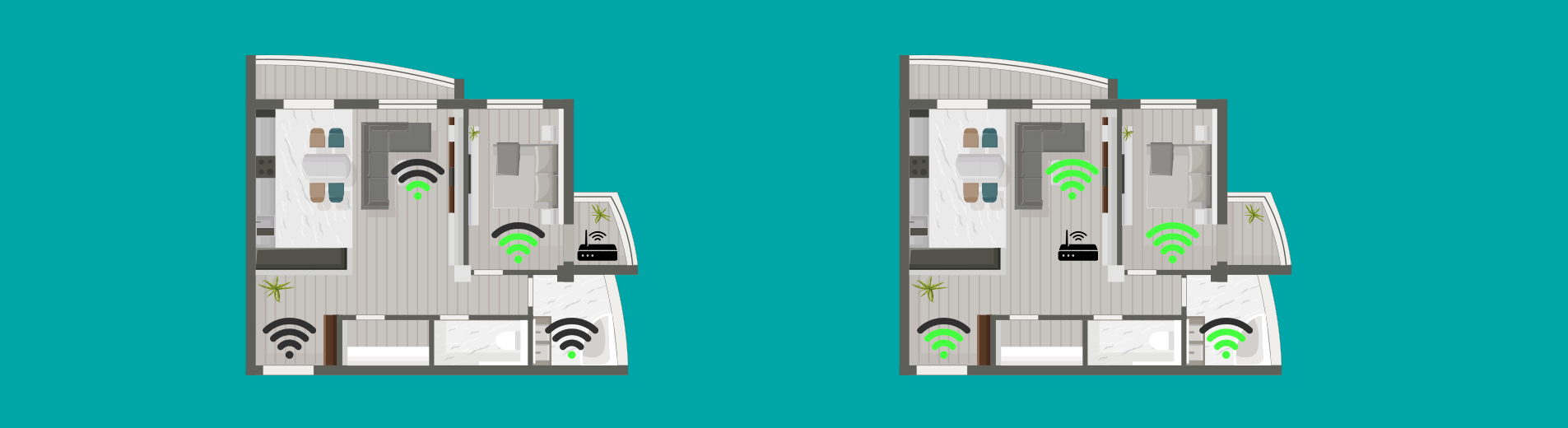
When it comes to wireless networking, many people don't pay attention to the location of the router, although this is the key factor for a stable home Internet access. If you install an expensive router in the wrong place, the internet will not work properly and you will face obvious problems with Wi-Fi.
You've probably noticed that the Internet is weaker in some rooms or the signal disappears completely. The reason is that Wi-Fi is easily blocked or degraded by various obstacles that you may have in your home.
Where NOT to put the router:
- Kitchen. This is a place where you can often find metal surfaces (stove, fridge, decor) that suppress the signal very well. In addition, there is also a microwave, which can only create additional problems.
- Closed cupboard or box. Enclosed spaces, and if they are also metal, are a serious obstacle to the signal from your router. They not only absorb radio waves, but can also greatly deform them, and this will only reduce the speed of home Internet in the apartment.
- Near mirrors, glass, and windows. This is also bad for wireless internet, because mirrors and glass can reflect radio waves. It is better to place the router far away from them.
The perfect place for a router is in the central part of your apartment or house, away from walls and possible obstructions. This way, you can spread the signal evenly throughout all rooms. Avoid corners and places where the signal can be blocked or weakened. It is also recommended to place the router at a height (for example, on a table or shelf), and it is advisable to connect most devices directly by an Ethernet cable (TVs, computers).
Tip #4. How to choose the right internet tariff plan
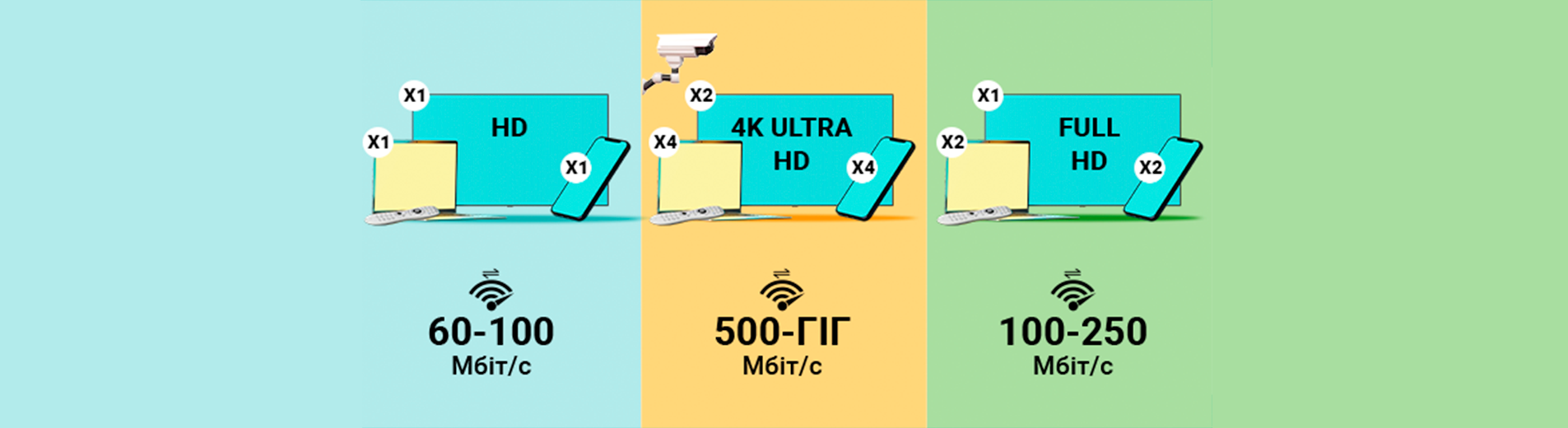
When you choose a tariff plan for your home Internet, it is important to understand that the price of home Internet and speed should meet your real needs.. Internet speed is the key to stable operation of all devices in your network.
1. Why is the size of your home important?
The larger your home, the more difficult it is to provide good Wi-Fi coverage in all corners of your apartment or house. This is because:
- Large areas create “dead zones”. A standard router may not cover the entire area, especially if there are walls, furniture, or other obstacles.
- Use of additional equipment. Large apartments or houses often require additional devices: signal amplifiers, access points, or even a second router. But this means that each of these devices also consumes traffic, and the Internet speed must be sufficient for the stable operation of the entire network.
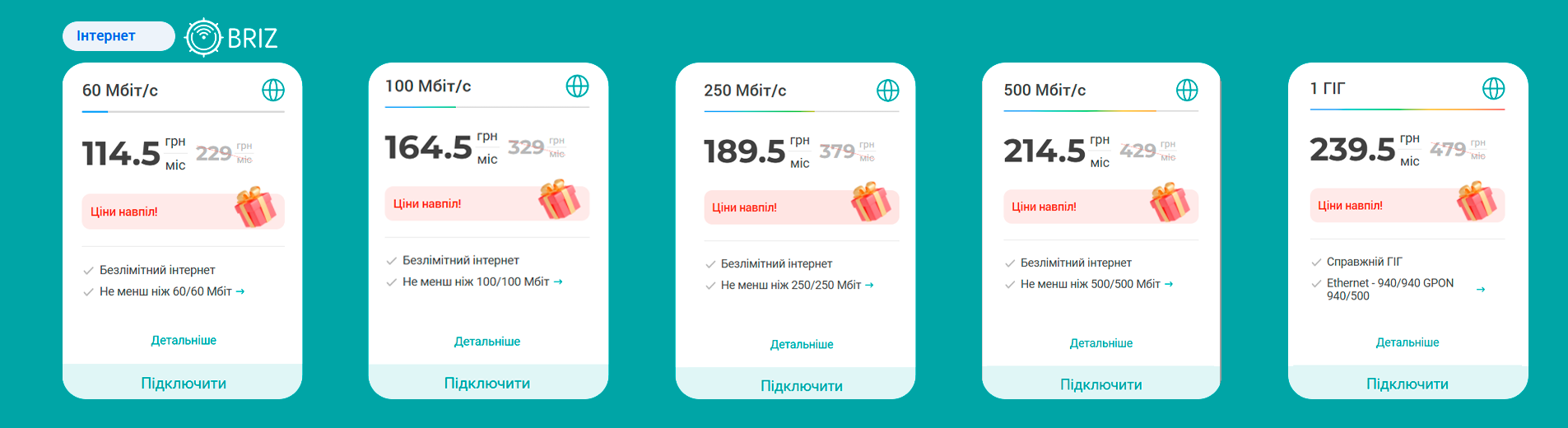
For example, if you have a two-story house and several routers or access points, you should consider a tariff with a speed of 250 Mbps or more to ensure that all devices receive a signal and don't reduce the quality of the connection.
2. How many devices are in your network?
If you live alone or with a partner and use only a couple of devices (for example, 2 phones, a laptop and a TV), then 100 Mbps will be enough for you. It is all you need for watching HD videos, surfing the web, and using social media.
But if you have a large family where each member uses several gadgets, you need a tariff with a speed of 250 Mbps or more.
3. Smart home
If your home has a video surveillance system, alarm system, smart devices (thermostats, lamps, sockets, etc.), and many routers, TVs, computers, phones, etc., then connecting a home Internet connection with a speed of 500 Mbps or higher is the best choice. All of this puts a lot of strain on the network, and low speeds will cause failures.
Tip #5. Setting up your router for stable internet
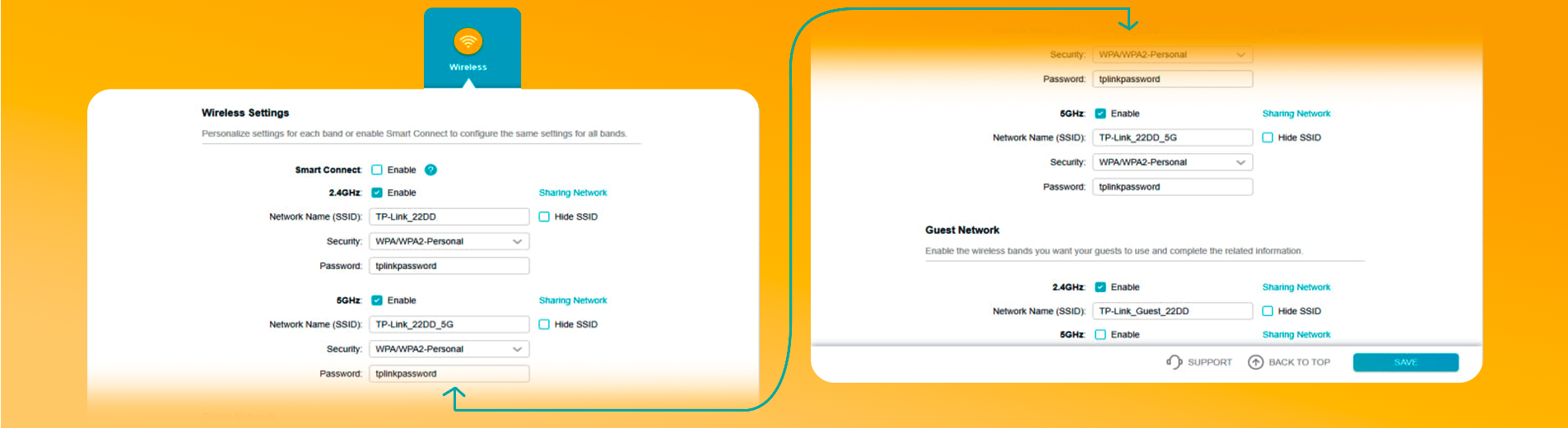
Your router needs minimal setup for connecting to the Internet, and you can find out how to do it in our article “How to replace an old router with a new one by yourself”.
To configure your router correctly, follow our recommendations: step-by-step instructions for TP-Link, Xiaomi, Netis, D-Link, Mikrotik, and Asus routers.
But if you want to optimize your network, there are a few things you should pay attention to:
1. Update the firmware to the latest version.
2. Set up a specific channel for Wi-Fi.
Your Wi-Fi works on specific channels, like a radio station. If there are many routers near you (especially in apartment buildings), they (for example, neighboring routers or your additional access points) may use the same channels, creating even more additional interference.
Most routers are set to automatically configure channels. You can find a free one by yourself and use it in the settings. In this case, your signal will be better, but you should remember that the channel that was free today may become overloaded tomorrow. If that happens, you need to repeat the search and change it to a new one.
3. Turn off the function of Smart Connect.
Smart Connect automatically switches devices between 2.4 GHz and 5 GHz networks for the best performance. However, it may not work properly on many devices, which may result in them being unable to access the network.
- 2.4 GHz: For devices that are far from the router.
- 5 GHz: For high-speed connections over short distances.
Perfect home internet: what is important to remember
To have the perfect Internet for your home, you need to take a comprehensive approach: from choosing the type of connection to optimizing your router settings. The use of modern technologies such as GPON, a high-quality dual-band router with Wi-Fi 5 or Wi-Fi 6 support, as well as the correct configuration and location of the equipment - all this makes sure that you will get fast and reliable Internet.
Don't forget about the importance of a properly selected tariff plan. Take into account the number of devices in your network, the size of your home, and your needs to ensure that the speed always meets your expectations.
If you want to get the most out of your internet, follow our tips. And if you still have questions or need help, you can always contact our technical support team at the hotline. Comfortable, fast and reliable Internet for your home is real!
Receive information about promotions and news from BRIZ to your email address

Be the first to comment