


What to do if your Wi‑Fi router doesn't work
to read 7 min
If something goes wrong with your internet connection, before you start looking for a fault, you should check it:
- the payment for the current month in your Personal Account
- information about the techincal works that could be announced by the provider on the official website
If everything is alright with the payment, and there are no scheduled maintenance works, and your Internet connection has stopped working for some reason, you can always check your connection yourself.
But the first thing you should do is reboot your router by unplugging it for 1-2 minutes!
So what should you look for?
The router's indication is a great helper in diagnostics. It shows whether all parts of the router are working, if it is connected to the network, or it can't power on at all. Let's look at the main points:
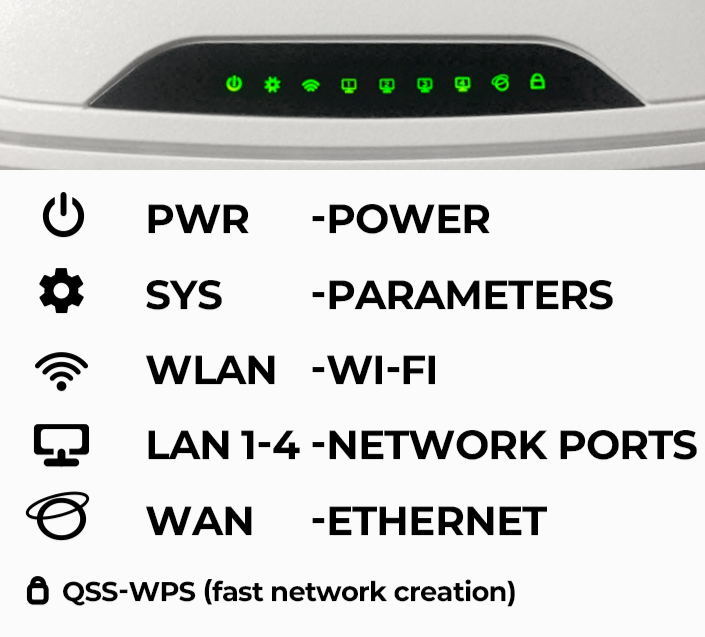
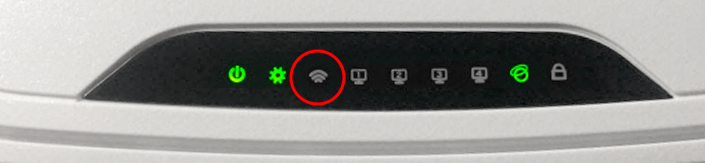
1. Is the Wi-Fi indicator on: if it is not, and it is activated by both physically and software, then there is probably a hardware error. In this case, it is better to contact a service centre or replace the router with another one.
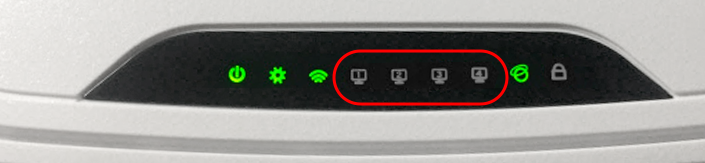
2. Is the LAN port (or ports) indicator light on (on some routers, each port may have its own indicator light): if not, try moving the cable to a nearby LAN port. If the indicator still does not light up, there may be an issue with the cable, the router or your end device (laptop/PC/TV).
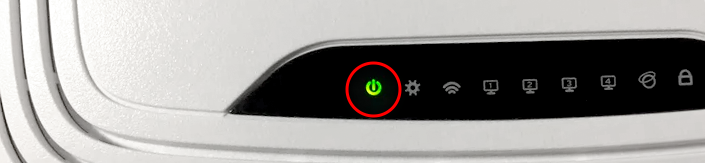
3. If there is no indication at all (all indicators are blinking, or only the power indicator lights up): first of all, you need to check through another outlet or an extension cord. Didn't help? Most likely, either the router or the power supply may have been out of order. In this case, it makes sense to replace the PSU with a new one, depending on the amperage and voltage of your router.
4. The WAN indicator is off: this means that your router can't access to the Internet. You can reposition the cable and reboot the router. You should also check the router settings. If nothing helps, the cable may not be fully inserted, there may be a break in the line somewhere, or technical work is being carried out.
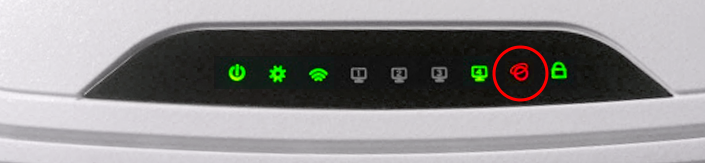
Now let's look at situations when the display is displayed correctly and the router gets access to the Internet:
1. Your device (phone/tablet/laptop/TV) is connected to the Wi-Fi network, but ‘No Internet access’?
Check how the Internet works on other devices: if only one of them does not have access, then the issue needs to be resolved only with it. If there is no access on all of them, then:
- reconnect the devices to the Wi-Fi network
- reboot them if necessary
- reconnect the cable in the router
If none of the devices has access to the Internet after such manipulations, then most likely, the reason is in the router. We remind you that the cable from your provider should be in the WAN port (or sometimes called Ethernet).
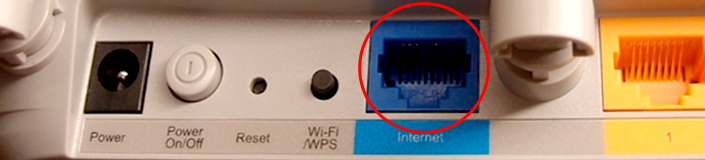
2. When connecting to the Internet, it says ‘No access to the Internet’ only on a certain device
If the device is connected via cable:
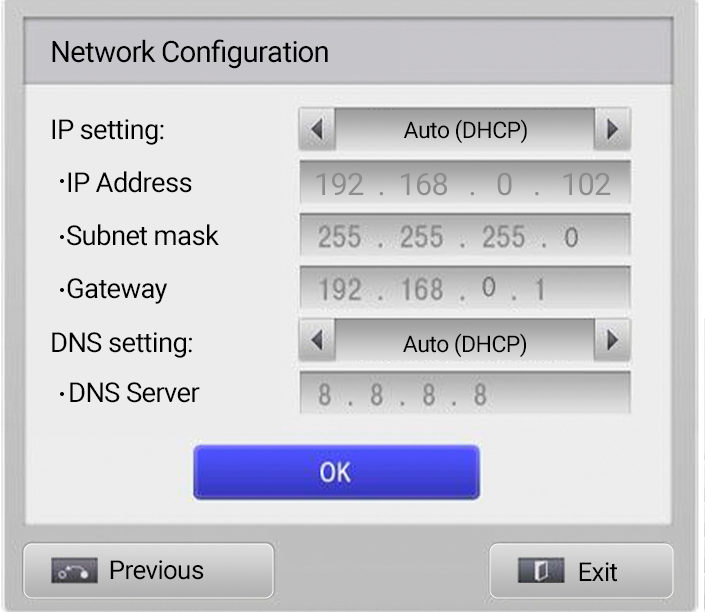
You can find the settings:
- in the TV in the ‘Network’ section, in the IP address settings.
- in a laptop or PC - in the adapter settings in the ‘Network and Internet’ section.
IP, subnet mask, gateway and DNS should be set to default (automatic).
Remember that any incorrect changes may affect the connection and restrict access to the Internet.
- Be sure to reconnect the Internet cable on the side of the router and on the side of the end device. You may need to change the LAN port on the router.
Does the Internet connection appear and disappear? Try moving the cable below the connector on the router or end device side and see if the situation repeats. The fault may be related to the cable. In this case, you need to replace the connector/internet cable with another one.
The device is connected via Wi-Fi:
- The device should be close to the router so that the signal is not interrupted by walls or other obstacles.
- Check what kind of Wi-Fi network you are connected to - 2.4 GHz (works at a long distance, but the speed decreases) or 5 GHz (works well only at a close distance from the router).
- If it's a laptop/phone, you may have accidentally clicked on the Wi-Fi switch-off, or the Airplane mode is on.
- Be sure to reconnect Wi-Fi in the settings and make sure the password is correct.
- Sometimes a simple reboot of the device (phone, tablet, etc.) can help.
3. The router does not broadcast its wireless network, the Internet works exclusively by cable (SSID is not visible).
If the Wi-Fi indicator on the router is not lit, it may have been switched off using the button on the back or side panel (it may have the inscription ‘Wi-Fi On/Off’ or the symbol Wi-Fi/WPS, Wi-Fi/Reset). Turn it on to activate the wireless connection.
Some routers do not have such a button, but you can always check the router settings to see if the wireless connection is enabled by software.
Please note! If the Wi-Fi button can be combined with WPS or Reset, then excessive holding may cause the network to switch to WPS operation, or reset to factory settings.
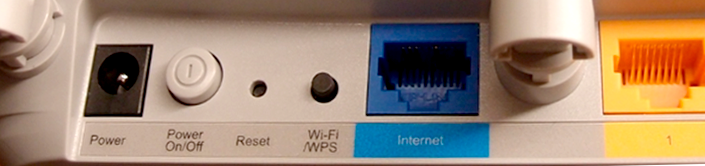
So make sure you are pressing the correct button. Your Wi-Fi network should then resume working. If the issue remains, there may be other causes, such as a hardware failure or a configuration conflict with your router.
4. The Wi-Fi network is ‘Connected’ but nothing is downloading
Check on other devices on Wi-Fi and via cable. If the same situation happens on all of them, the issue may be with your router.
Restart the router and reconnect all the cables.
If you cannot restore Internet access after rebooting, check the router settings. They might have been changed or configured incorrectly.
If none of these methods help, or if the router's web interface cannot be opened, you can try restoring the router to factory settings and reconfigure it.
5 . The name of the Wi-Fi network (SSID) has changed to the default factory name, and when connected, it says ‘No Internet access’
Due to unexpected power surges or accidental resetting of the router to the factory settings, the Internet stops working. In such situations, you need to configure the router again and restore Internet access.
First, check if your router is broadcasting the factory network name (SSID): information about it, the IP address to enter the settings, and the login/password for access is located on the label on the back of the router.
Secondly, depending on the type of connection, the router settings may differ.
How can I configure the router myself?
Each router has its own interface, which is almost unlike any other, which is why it can be difficult for some clients to set up. You also need to understand what type of configuration you need to use to set up your router.
If you go to the personal user account, click on ‘Settings’ in the ‘Your services’ section, there will be a ‘Connection type’ option:
- If you have a copper cable connection (FTTB) or an optical connection via a media converter (FTTH optical cable), you need to configure the router using the PPPoE protocol.
- If you have an optical fibre connection (GPON optical cable), you need to specify a dynamic default IP address as standard. You can find it here.
Pay attention! When setting up PPPoE, you must specify the Secondary Connection. If you skip this, the router may not work correctly. If your router does not have this option, we recommend contacting technical support for a detailed check.
We offer settings for such routers as Mikrotik, TP-Link, ASUS, Tenda, Mercusys, DLink, Netis, and Xiaomi. You can learn how to configure the PPPoE protocol for these routers here.
If your router is out of order or is not working as well as you want, you can find a list of available ones on our website. Before purchasing, it is recommended to get advice from technical support specialists. The price includes router setup and delivery, available only for BRIZ subscribers.
Did our tips not help or solve your issue?
Contact the technical support team for additional assistance.
Conclusion
We really hope that these recommendations have helped you better understand what to do if you lose your internet connection. Our technical support team is always ready to help with any technical issues you may have.
How to contact us?
Call us by phone or request a call!
You can also write to us in the online chat in the Telegram bot, via the website or in the My Briz app (Android / iOS).
Can't reach us by phone? Our customer service department is located at 2 Vladyslava Buvalkina Street
Receive information about promotions and news from BRIZ to your email address

Be the first to comment