


How to forward ports on a wi‑fi router?
to read 11 min
The port forwarding process is not complicated and is a useful life hack for those who connect video surveillance or have game servers.
What is a port?
The port has the value of a natural number. In the header of the OSI protocol, this number is written and is necessary to determine the sender of the data.
When sending and receiving data over the network, some tasks are used between the sender and the recipient.
Forward ports, for what?
Each router has its own standard settings for masking the addresses of connected devices. When data arrives from equipment within the network, the router opens a port and forwards the data. In this case, the internal IP of the recipient is changed to the external address of the router. When replies are received on the dedicated port, the router forwards the information to the device for which it is intended. In this way, only the IP address is visible for the equipment, while other connected equipment remains incognito.
This process is necessary when the number of IPv4s decreases. To "connect" to connected devices in the local network, just the same, you need to carry out the process of port forwarding.
“Forwarding” ports is a series of actions that are included in the complex for improving networkers. The redirection process maps a port on the outside of the hardware to ports from the locale. Interestingly, with the advent of IPv6, port forwarding is no longer necessary.
Port forwarding is the job of a router to reserve one port so that all incoming traffic is directed to one computer.
“Forwarding” ports on the example of a TP-Link router
- Open the router settings page. How to do this see here.
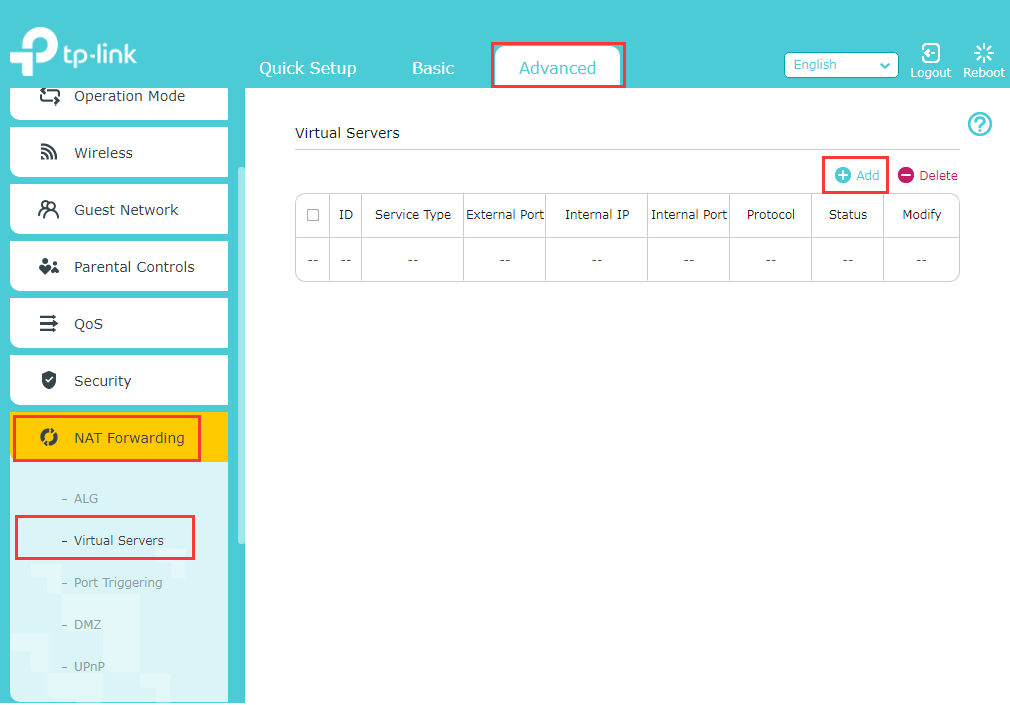
- Click Advanced -> NAT Forwarding -> Virtual Server, then select Add.
3. In the "Service" section, enter the detailed information that you have confirmed with the internet provider. For this case, see detailed setup below:
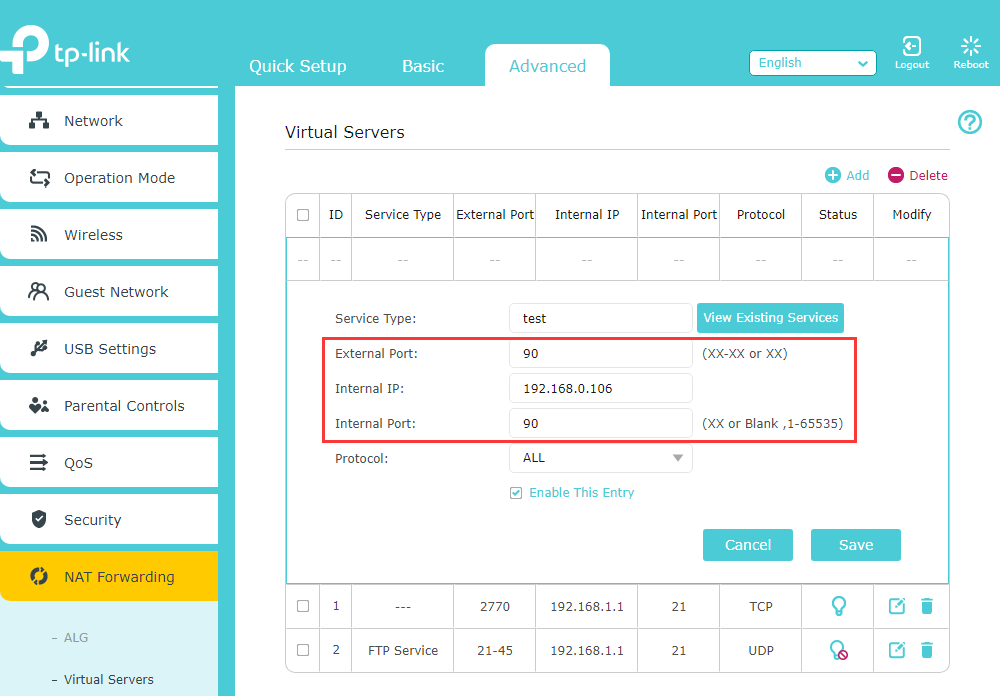
Service Type: Select the service you want to use from the View Existing Services list. If the service you want to use is not listed in the View Existing Services menu, you can enter its type manually.
External Port and Internal Port: Select the service you want to use from the "View Existing Services" list, then the "External Port" and "Internal Port" fields will be filled in automatically.
Pay attention:
- If you need to enter the xx-xx port range when setting up port forwarding, leave the internal port blank;
- External port and internal port can usually be the same.
Internal: Specify the IP address of the equipment for which you are opening a port.
Protocol: Specify the information used for this application from the drop-down list, or select "All".
4. Click Save.
Use a dedicated IP address so that DHCP functionality does not change when used.
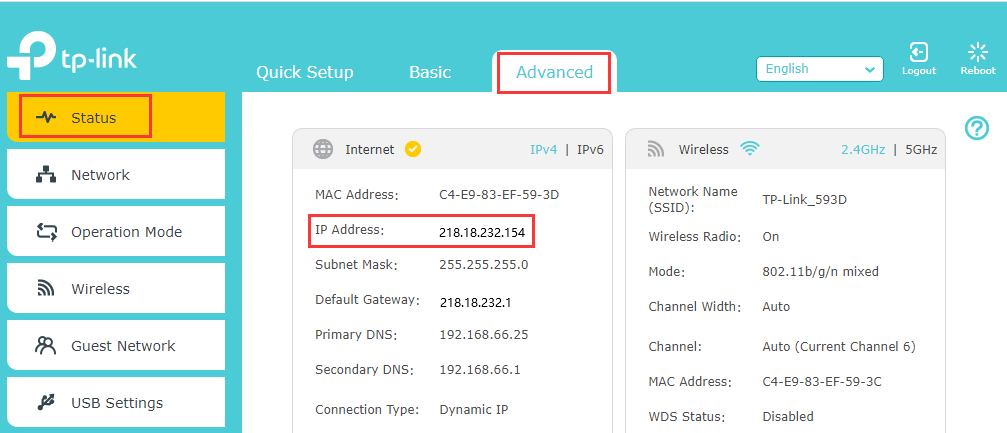
5. Open Advanced -> Status and check the WAN IP address of the router.
If the equipment's WAN IP address is its own, it means that another NAT device is connected to it. In this case, you need to use the service port.
Let us know in the comments below if you have done ports forwarding? What difficulties did you face?
Receive information about promotions and news from BRIZ to your email address

В Василий B BRIZ
D Dima B BRIZ
Load more29.05.2024
Вообще случайно наткнулся на эту статью. Не работали сервера онлайн игр, помог проброс портов. Большое спасибо за информацию.
30.05.2024
Дякуємо за Ваш відгук!
30.05.2024
Для удаленного доступа нужно было открыть определенный порт на роутере и ваша ваша статья очень помогла
30.05.2024
Завжди приємно чути, що рекомендації були корисними. Дякуємо за Ваш відгук!