


Why YouTube is lagging and how to fix it
to read 7 min
Introduction
Have you started watching your favorite video on YouTube and it suddenly slows down? Permanent pauses, loading every few seconds, or poor video quality ruin any enjoyment of the content. Similar issues can occur when watching movies or TV shows, both on official streaming platforms such as Netflix, HBO, Disney+, and especially on other free-to-view sites.
The first reaction is to call and complain to the provider. But why does this happen and how can you get rid of it? In this article, we'll look at the top 3 causes of video slowdowns and give you tips on how to forget about it once and for all.
Causes of slowing down videos on YouTube
YouTube is available on almost any device, from smartphones to TVs. However, this also means that the causes of video lag can be completely different, depending on the device you're using. Let's look at the possible reasons for this in three categories: TV, tablet/phone, and personal computer/laptop. Each of these devices has its own characteristics that can affect the speed and quality of video playback.
1. Quality of your internet connection.
If your device is connected by Wi-Fi, first check your internet speed on our website or on speedtest. For smooth Full HD video streaming, you only need 10 Mbps, as recommended by Google.
However, you can't always rely on Wi-Fi. There are many factors that can affect the quality of a wireless network, such as other devices on the network or interference from equipment. To avoid this, it's best to connect your main devices, such as a TV, computer, or laptop, using an Ethernet cable. This way, your connection will be reliable and faster.
You can read articles about the causes of bad internet and basic life hacks to improve your wireless connection here. This will only come in handy, so we recommend that you understand the main reasons.
2. What to do if YouTube lags even when connected by cable.
Pay attention to the previous tip and check your internet speed. If the result is disappointing, try reconnecting the cable, replacing it, or checking the speed on another device. Usually, it can be related to the cable or ports on the devices.
If the speed is normal, you should check the settings of third-party DNS servers.
DNS (Domain Name System) is a service that translates web addresses (for example, youtube.com). It converts web addresses into server IP addresses so that your device can find the right site. Your provider usually automatically supplies you with their DNS servers, which should be sufficient for stable operation.
However, if you use a third-party DNS, it can directly impact on your internet speed. Why does this happen? Third-party DNS servers may be located far away from you or overloaded, which can increase the delay when connecting to the servers.
3. Choosing the right tariff plan for your home internet
The reason is often the choice of a tariff plan with the lowest speed, especially if most of your devices are connected by Wi-Fi. For example, if you have a lot of gadgets and all of them actively use the Internet to watch videos, play games, or work, a router and low speed simply cannot cope with this task.
If you actively use streaming services, online games, or work with large amounts of data, the best solution is to connect to a gigabit tariff. High speed can easily cope with such loads, so you can not only watch 4K videos without delays, but also download large files and work comfortably with many connected devices.
YouTube lags on a PC or laptop
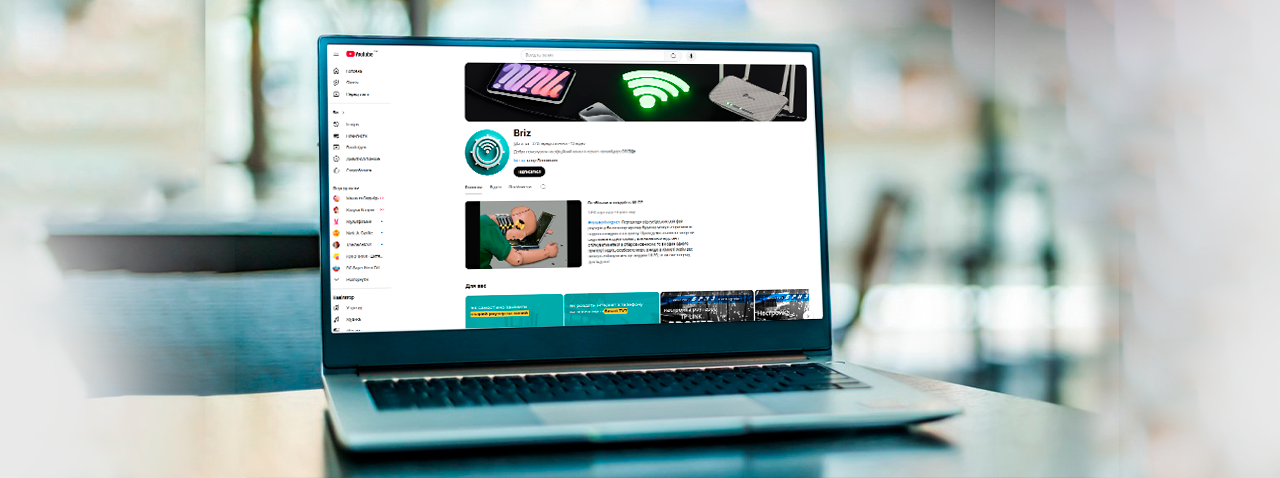
If you're using a Windows laptop or PC, it's important to think about its hardware. For your device to work properly, it must be in good working order. If you see that when you load a browser, or just any video in the task manager, the processor and RAM are almost 100% loaded, you should check the hardware.
1. Scan for malware or viruses
One of the most common causes of poor computer performance is the presence of viruses. If you notice that your device is running slower than usual, the first thing you should do is run an anti-virus scan.
2. Update drivers, system, or components
If you haven't updated your computer in a while, this could also be the reason for its slow performance. Also, don't forget to update the drivers for your video card, network adapters, and other components.
Do you notice that your computer is slow and no recommendations help? Contact a computer technician or consider upgrading your components yourself.
3. Browser settings
Try opening the video in different browsers, such as Google Chrome, Opera, and others. If it's slow in only one browser, it might be the issue.
If the lag persists, try reinstalling the browser or resetting all settings to factory defaults. You can also try disabling all installed extensions, clearing your search history and cookies. As a rule, third-party applications such as ad blockers (Adblock, Ublock) or others can also affect the operation of the service. Make sure you disable VPN because this service directly affects your speed and reduces it.
Slows down YouTube when watching on TV
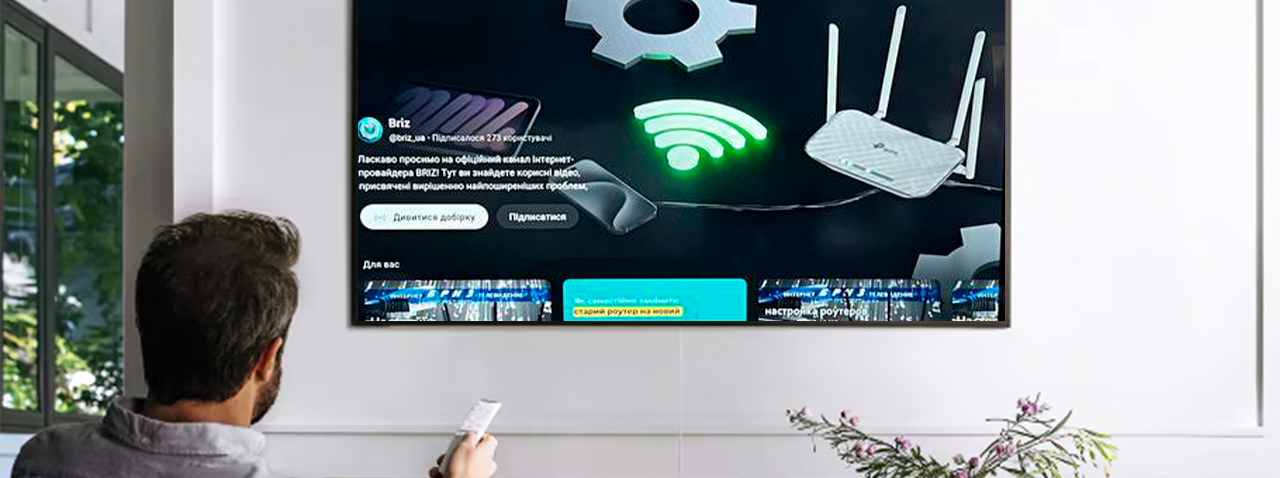
1. The concept of a “white” and “gray” smart TV
White TVs are devices that run on modern and official operating systems such as Android TV, LG Smart Web OS, or Tizen (Samsung). They provide access to a large number of popular applications, including YouTube, Netflix, and other streaming services. With these TVs, users get an optimized interface and regularly updated systems that improve stability and performance.
In contrast, gray TVs have limited functionality. They often use unofficial fakes or old versions of operating systems that do not support current applications. This can lead to a lack of access to popular services.
As a result, users are forced to access YouTube through a browser. However, this approach is not entirely correct: viewing through a browser can lead to delays and slowdowns, which directly depends on the TV, its operating system, and components.
2. Clearing the cache, reinstalling the app, and reducing auto-quality in the settings.
Start by clearing the cache in the settings of the specific app. This can free up space on your device and improve its speed. If that doesn't work, try reinstalling the app through the app store (Google Play, Apps, LG Content Web Store) to troubleshoot any issues.
Another simple but effective solution is to reduce the automatic video quality. Instead of using the maximum quality, choose a productive one. This will avoid freezes and ensure smooth viewing, even with a slow Internet connection.
3. Reset your TV to factory settings
If you notice that your TV has started to slow down in all applications (not just YouTube), you should consider resetting it to factory settings. This often helps to get rid of any conflicts between apps or errors that may have accumulated over time.
However, it's important to remember that this is a radical measure, because all your personal settings and data will be lost. Factory reset means deleting all your current settings and data and returning your TV to the state it was in when you first purchased it. For some older TV models, this may result in the system reverting to an older version, which can make it difficult to operate in the future.
Therefore, we note that it is better to do this at your own convenience. We recommend using it only if all other methods have failed.
After this reset, it is important to fully configure the TV. This includes connecting to Wi-Fi, registering with all the necessary services, and installing the latest software and app updates.
4. Android set-top box
If you notice that your TV is not up to date or has limited capabilities, you should consider getting an Android set-top box. They are updated regularly, so you can enjoy the latest versions of apps like YouTube. You'll have access to a wide range of apps from Google Play that really extend the capabilities of your TV.
Many set-top boxes have better hardware specs than built-in Smart TV systems, which means you'll get a smoother, lag-free viewing experience.
The available range of Android set-top boxes from BRIZ shopping mall can be viewed at the link.
YouTube slows down when watching on your phone
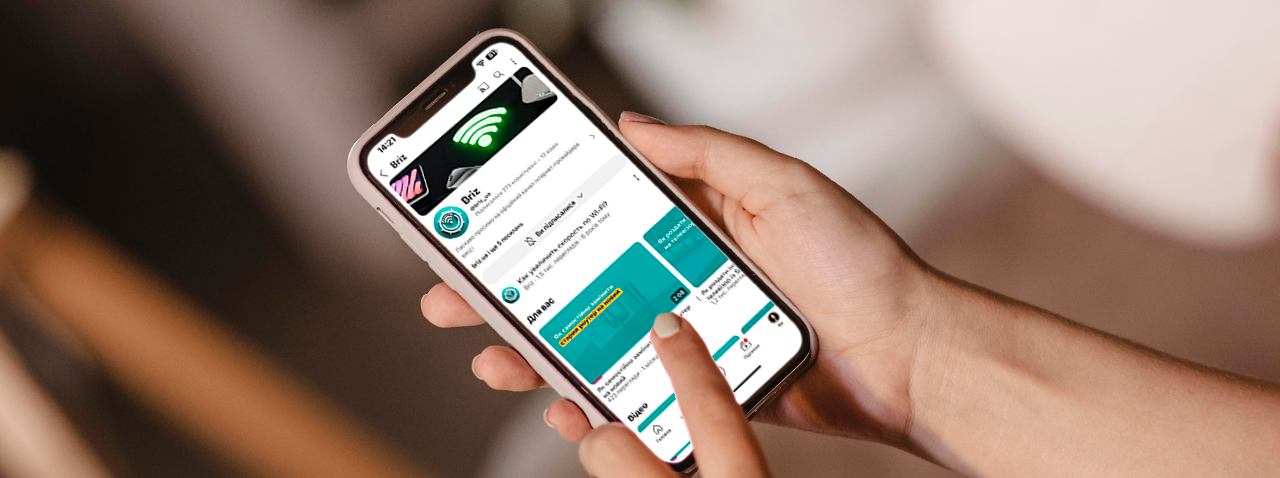
1. Reboot your phone
This is the simplest but most effective method. A quick reboot is a great way to get your phone up and running.
If you have notifications in your settings to update your operating system, it's best to do so. Updates usually include important fixes and optimizations that improve the stability of your device.
2. Clear YouTube cache
Caches are temporary files that are stored on your device to make accessing data faster and easier. If the cache is full, it can cause problems with the app. Go to settings, find YouTube in the list of apps, and clear the cache. If that doesn't help, try checking for updates or simply reinstalling the app.
3. Disable all apps running in the background
Too many apps running in the background can use up your phone's resources, which can affect its performance. By closing the ones you don't need, you'll free up RAM, which will help you watch your favorite videos without lag.
4. Turn off VPN, check your Wi-Fi connection.
If you're using a VPN, you should turn it off because it slows down your connection as data passes through additional servers. You should also check that your phone is connected to Wi-Fi and not a mobile network.
What should you pay attention to?

In addition to the tips mentioned earlier, you should also pay attention to several other factors that can affect YouTube's performance on all your devices.
Sometimes, YouTube access issues can be caused by server glitches on the part of Google. This can manifest itself in the form of slow loading or their inability to open at all. In such cases, it is important to wait until the problem is resolved on the YouTube side.
Another common issue is the message "No internet connection, check your network settings". If you receive this message, but other applications on your device work without any problems, pay attention to the date and time settings.
Slowdowns while watching TV shows and movies on streaming and other services
All of our previous tips apply to checking YouTube, as well as any other official streaming content such as HBO, Netflix, Megogo, Disney+, etc.
It's worth noting that streaming platforms may reduce video quality if their servers are overloaded or if your internet connection is weak.
The Internet provider is not responsible for the operation of third-party applications.
This is especially true for pirated sites that contain movies and TV shows. If you simply type “watch movies” in your browser and get to a website, you may encounter delays and interruptions due to the operation of this particular resource.
For uninterrupted viewing, it is always better to use reliable and legal streaming platforms!
Conclusion: ensure fast access to YouTube
YouTube or other services can slow down on completely different devices. And it's not just a matter of slow internet speed for watching videos or difficulties on the part of YouTube or another resource. It's also worth taking a closer look at your hardware and software settings.
We hope that our tips have helped you understand what might be causing the problem. If you are still unable to resolve the situation, we recommend contacting a technician who specializes in checking your hardware or our Internet connection specialists.
Receive information about promotions and news from BRIZ to your email address

Be the first to comment