


Safe internet for children: settings every parent should know
to read 6 min
- Activation of parental controls on router and devices for home internet
- Enabling safe search and restricted mode
- Privacy settings in social networks and apps
- Install reliable antivirus and firewall
- Control screen time on internet
- Talk to children about online safety and rules for Internet use
- Use VPN for additional protection of home internet (if needed and understood)
- Conclusion
According to research, Ukrainian children spend an average of 3-4 hours a day on the internet, while teenagers spend much more. This means that a child's safety online must be a priority for parents. Fortunately, you can significantly increase the level of online safety for your children by making just a few simple but very important settings. This will not replace open dialogue but will become a strong foundation for their protection.
In this article, we will review 7 key settings that you need to enable right now to ensure a home internet for children. Remember that program interfaces and operating systems can update, so exact menu item names may differ slightly. If you cannot find the necessary setting, try searching for similar names or refer to the manufacturer’s help materials.
Activation of parental controls on router and devices for home internet
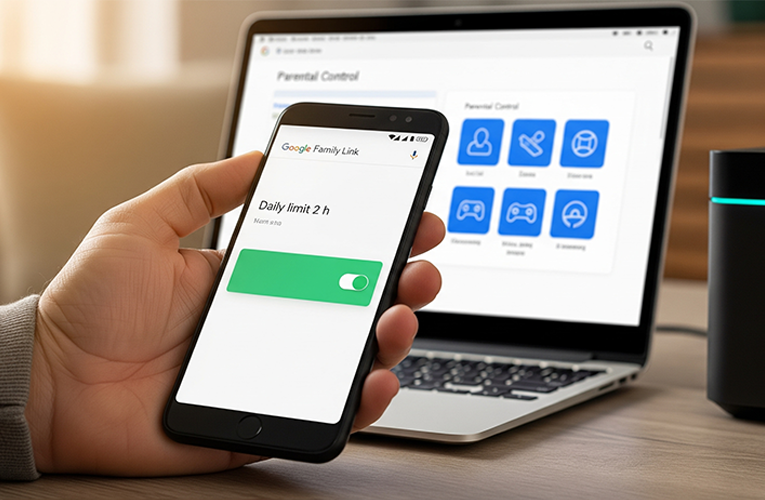
Parental control is your first and most important line of defense. It allows filtering harmful content, limiting time spent online, and blocking access to certain websites or programs.
How to set up
On the router: most modern routers, including those provided by BRIZ, have built-in parental control functions.
Usually, you need to log into the router’s admin panel (instructions can be found in your router’s manual or on the manufacturer’s website) and find the section "Parental Control" or "Access Control." Here you can block sites by categories, create “white” and “black” lists of resources, and set a schedule for internet access for specific devices.
On the computer (Windows/macOS):
- Windows. Log into "Settings" -> "Accounts" -> "Family & other users" and add a child account. You can control device usage time, restrict access to apps and games, as well as filter content in the Edge browser.
- macOS. Go to "System Preferences" -> "Screen Time" -> "Family" and set restrictions for the child’s account, including app and website limits.
On the smartphone/tablet (Android/iOS):
- Android. Use the Google Family Link app. It allows setting time limits, blocking apps, viewing the child’s device location, and approving downloads from Google Play.
- iOS. The "Screen Time" function in "Settings" makes it possible to limit app usage time, block inappropriate content, restrict in-app purchases, and much more.
Tip: always discuss internet usage rules with children. Explain why you are setting these restrictions. Use strong, complex passwords to access parental control settings.
Enabling safe search and restricted mode
These settings will help protect your child from accidental access to unwanted or explicit content while searching for information or watching videos.
How to set up
Google SafeSearch. This function filters explicit content in Google search results. Usually, it is enabled by default, but it’s worth checking. Go to Google search settings and make sure "SafeSearch" is activated.
YouTube Restricted Mode. This mode helps hide potentially adult content. You can enable it by scrolling down the YouTube page (on PC) or in account settings (on mobile devices). For younger children, it is better to use the YouTube Kids app, which offers only children’s content.
Bing, DuckDuckGo, and other search engines. Most search engines have similar content filtering functions in their settings.
Tip: regularly check these settings, as they may sometimes reset. Teach children that if they see something strange or unpleasant, they should immediately tell you.
Privacy settings in social networks and apps
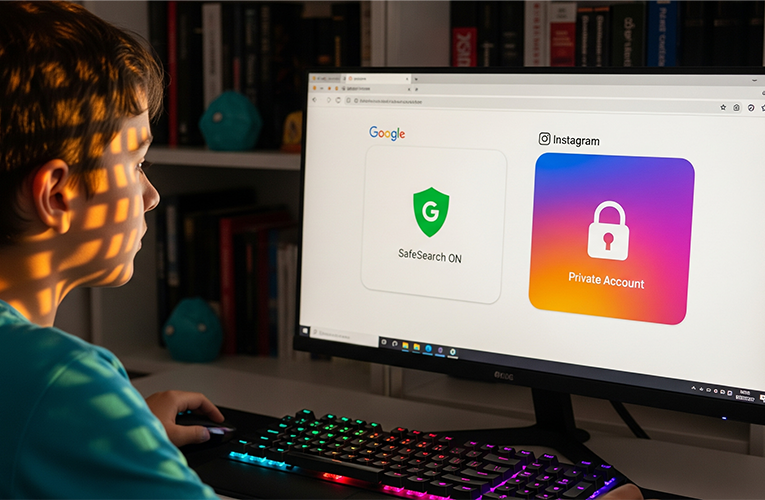
As they grow older, children begin actively using social networks and messengers. Privacy settings are critically important for their safety.
How to set up
Teaching children: explain that their profile in a social network is like their home, and not everyone should be allowed in.
Private profiles: make sure children’s accounts (Instagram, TikTok, and others) are private. This means that only approved followers can see their posts.
Limiting communication circle: teach children not to accept requests from strangers and to block those who seem suspicious.
Geolocation: turn off geolocation functions in apps, especially those children use outdoors.
Contact information: explain to children that they must not publish personal information – address, phone number, school, photos of documents.
Tip: discuss with children what they post online. Emphasize that everything that gets on the internet stays there forever.
Install reliable antivirus and firewall
Antivirus software and a firewall are important cybersecurity tools for children. They protect against malware, viruses, phishing attacks, and unauthorized access.
How to set up
Antivirus. Install reliable antivirus software (such as ESET, Bitdefender, Avast, Norton, Avira) on all devices children use (computers, laptops, tablets, smartphones). Set up automatic updates.
Firewall. Make sure the operating system’s firewall (such as Windows Defender Firewall for Windows or the built-in firewall for macOS) is enabled and properly configured. It controls incoming and outgoing traffic, preventing unauthorized access to the device.
Updates. Set automatic software updates on all devices. This is critically important for protection against new threats.
Tip: teach children not to click on suspicious links, not to download files from unknown sources, and to be careful with emails from strangers.
Control screen time on internet
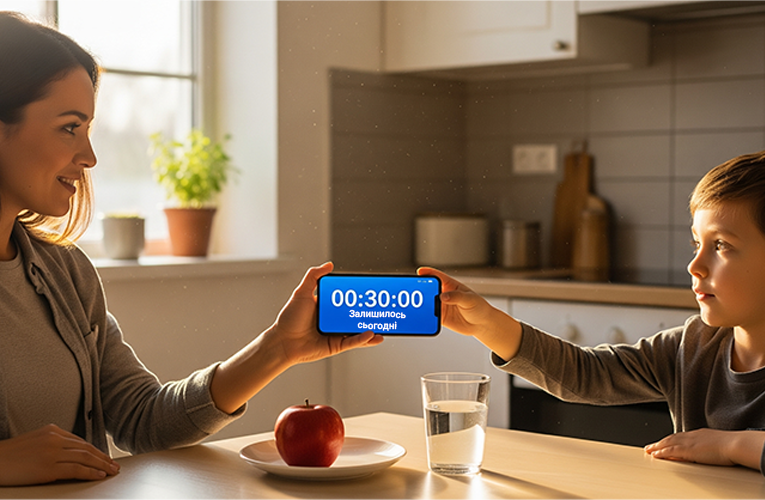
Excessive gadget use can lead not only to vision or posture problems but also to internet addiction. Setting time limits online for children is an important part of their healthy development.
How to set up
OS functions: use the already mentioned "Screen Time" (iOS) or Family Link (Android) functions to set app usage limits and total device time.
Schedule: create a clear schedule of when the child can use gadgets and when they should not. For example, prohibition before bedtime or during meals.
Alternatives: encourage other activities: sports, reading books, walks outdoors, board games.
Tip: be consistent in your requirements. The best way to teach a child is to show by example. If you are constantly on your smartphone, it will be hard for a child to understand the restrictions.
Talk to children about online safety and rules for Internet use
No technical settings can fully protect a child if they do not understand potential threats and rules of online behavior. Developing digital literacy is the most important task.
How to talk
Open dialogue – create an atmosphere of trust so that the child is not afraid to tell you about their problems or unpleasant online situations.
"Stranger" rule – explain that not everyone online is who they claim to be. Teach the child never to meet online acquaintances in real life without your permission.
Cyberbullying – discuss what cyberbullying is, how to recognize it, and what to do if the child encounters it: save evidence, block the offender, tell an adult.
Privacy – once again emphasize the importance of not disclosing personal information.
Critical thinking – teach children to critically evaluate the information they see online.
Tip: be patient. Have these conversations regularly, adapting them to the child’s age.
Use VPN for additional protection of home internet (if needed and understood)
For older children and teenagers who actively use public Wi-Fi networks or need an additional level of privacy, a virtual private network (VPN) can be a useful tool.
What it is: VPN encrypts internet traffic and hides your real IP address, increasing anonymity and security online.
How to set up
Choosing a VPN service: there are many paid and free VPN services (such as NordVPN, ExpressVPN, ProtonVPN). Choose reliable, verified solutions.
Installation: usually done by installing a special app on the device and connecting to a server.
Tip: this is not a mandatory setting for everyone. Discuss with your teenager when and why they might need a VPN. Very important: do not use a VPN to bypass parental control!
Conclusion
Guaranteeing a safe internet for children is a continuous process that requires a combination of technical settings, vigilance, and, most importantly, open dialogue with your children. No filters or restrictions can replace your presence, trust, and upbringing.
Apply these 7 settings now to create a safe digital environment for your children. And to ensure your protection is reliable and stable, choose reliable routers from trusted providers.
Internet provider BRIZ in Odesa and the region provides routers with all necessary security settings for home internet, which will become a strong foundation for ensuring cybersecurity for your children. Check out BRIZ routers on our website and take care of your family’s future today!
Receive information about promotions and news from BRIZ to your email address

Be the first to comment