Attention! Do not connect the Briz cable to the router and computer until the setup is complete.
Connect the router to the computer using the included meter cable. The cable must be plugged into any of the four free LAN ports and the network card of the computer, which had the Briz cable.
In order to configure the router, you do not need to use the disk that comes with the router. You need to open any browser (for example - Internet Explorer, Mozilla or Opera) and enter the following address in the address bar of this program: http://192.168.1.1 and go to the page. You will be presented with an authorization window, in which there are two fields: "User Name" and "Password". By default "User Name" is admin and "Password" is also admin.
Changing the IP address of the router
Now go to the "Local network" - "LAN IP" section. Here you need to change the IP-address of the router "192.168.1.1" to "192.168.0.1" (required).
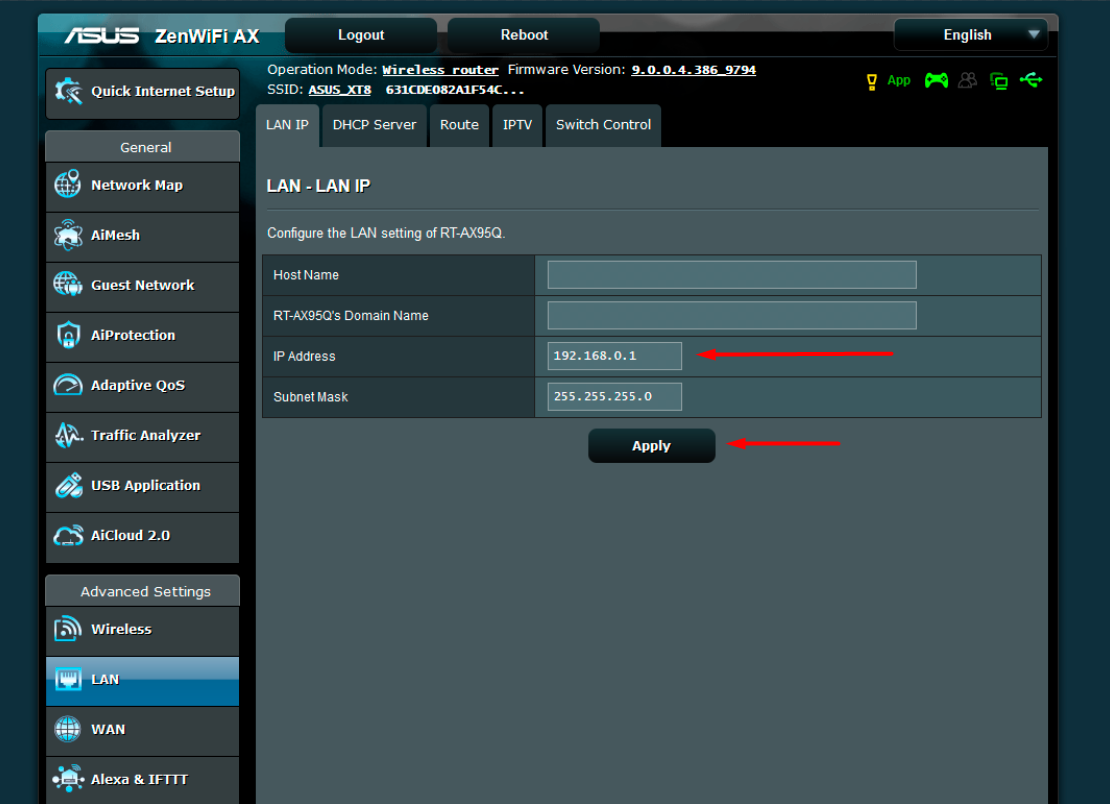
After updating the IP address of the router, we return to the settings page at the new address: http://192.168.0.1, where we again enter the login\password.
Internet connection setup
Let's proceed directly to setting up the connection.
1. Go to the "WAN" section and select the "Internet Connection" subsection.
2. Select "WAN Connection Type" - "PPPoE".
3. We put (if not) the point "Gat the WAN IP automatically?" - "YES".
4. We put (if not worth it) the point "Connect to the DNS Server automatically?" - "YES".
5. "Username" and "Password" enter your username and password on the Internet.
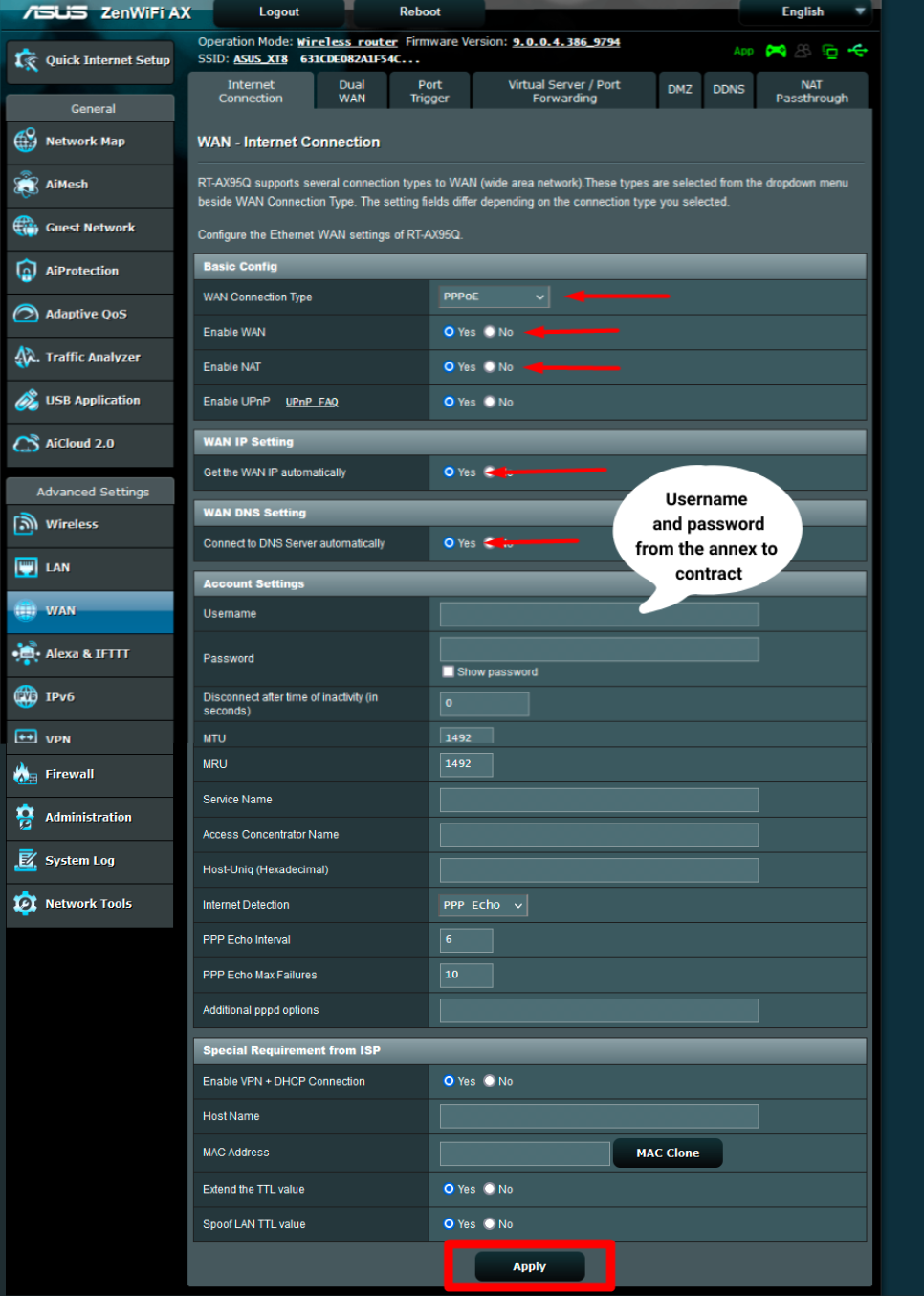
We save the changes by clicking the "Apply" button.
Setting up a wireless network (WI-FI)
Go to the "Wireless network" section. Here we set on the "General" tab:
- "Network name (SSID)" - The name of your network to which your devices will connect.
- "Authentication Method" - "WPA2-Personal".
- "WPA Encryption" - "AES".
- "WPA pre-shared key" - specify the password for connecting to the network (can be any).
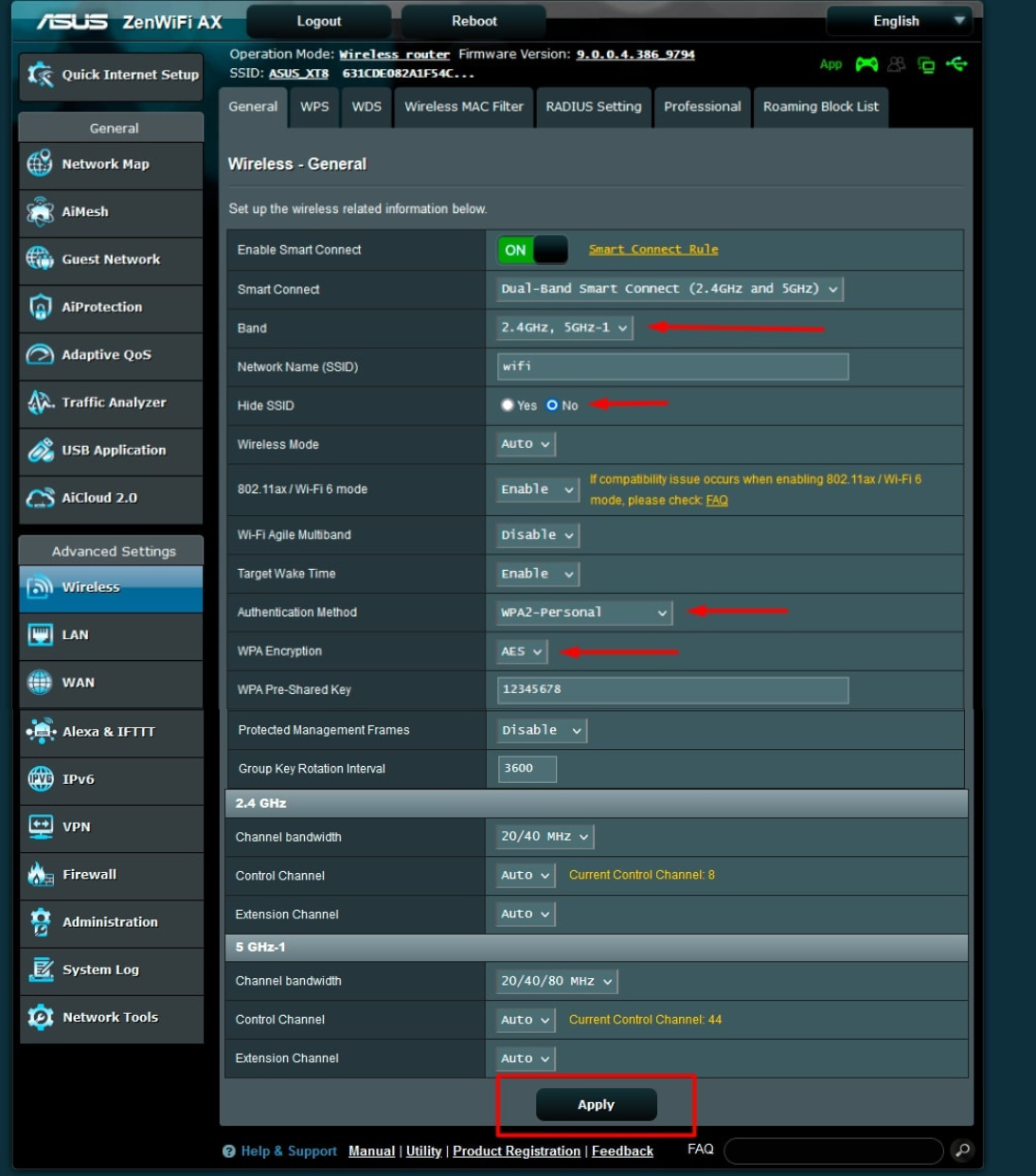
We save the changes by clicking the "Apply" button.
Setting up communication with the router
Go to the "Firewall" section.
We put (if not worth it) the point "Respond ICMP Echo (ping) Request from WAN" - "Yes".
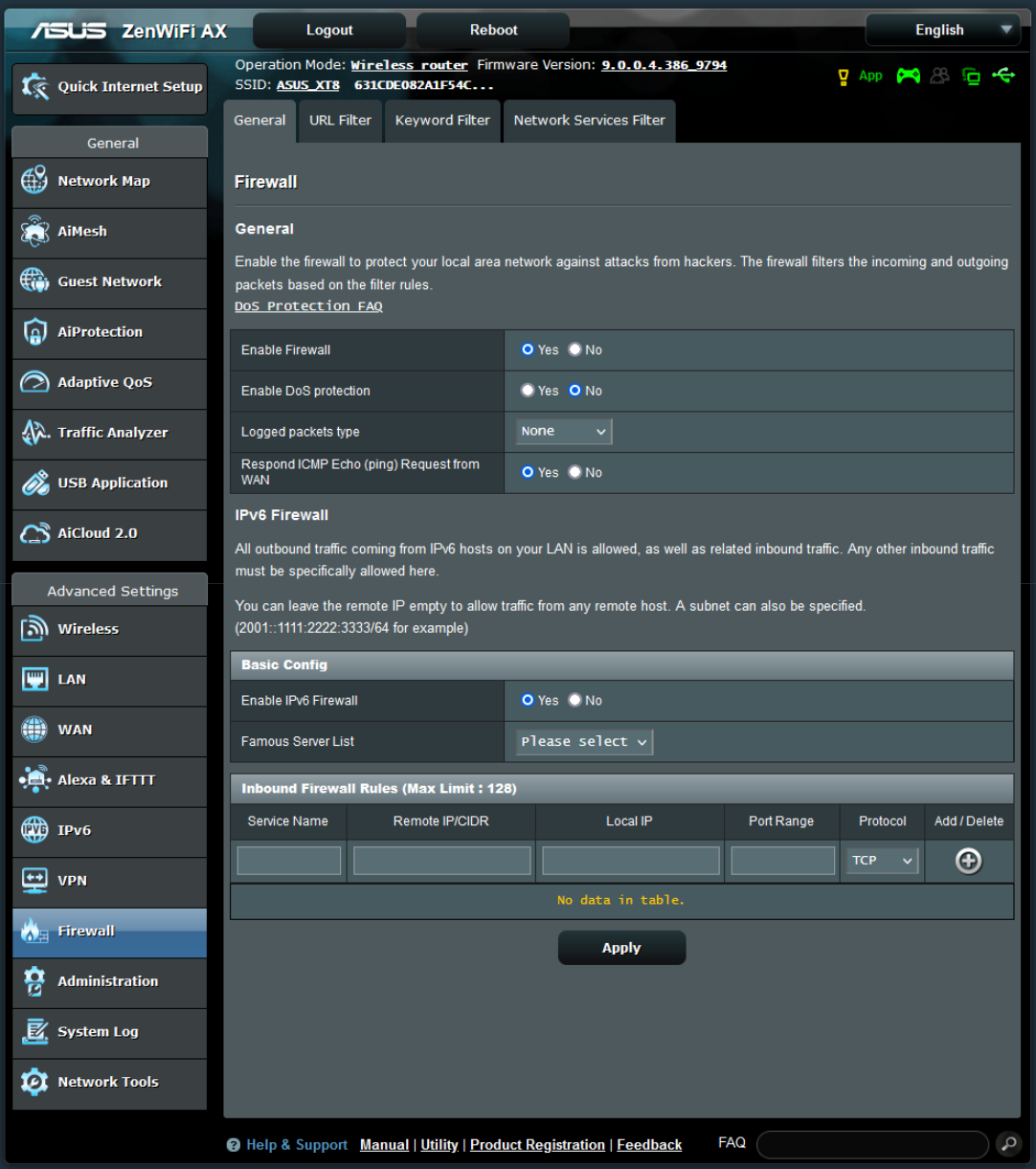
We save the changes by clicking the "Apply" button.
Change the binding to the device
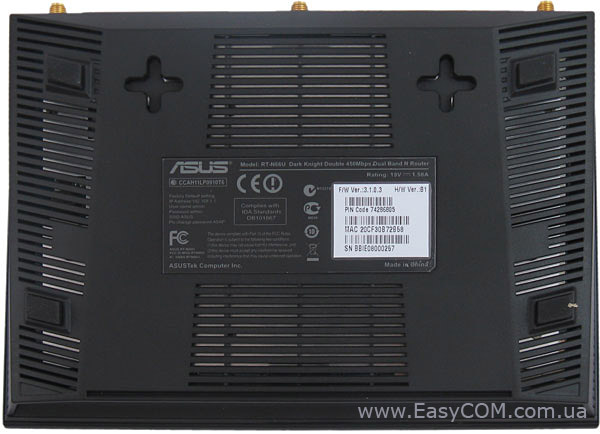
On the back of the router, on the sticker under the barcode, there is a code (12 characters) - this is the MAC address of the device. Contact a support operator or change the MAC address in your personal account.
The router configuration is complete.


