


Reducing high ping in games: how to do it? Tips
to read 10 min
- Introduction
- What is ping?
- Which ping is defined as excellent?
- Diagnostic of the resources by using traceroute commands or the WINMTR utility
- How to use Tracert?
- Where can I find the IP address of my game's server?
- What is WINMTR and how can it help us?
- How to reduce ping and what causes it?
- Why might it work better on other providers or mobile internet?
- Conclusion
Introduction
Have you ever faced an annoyingly high ping while playing your favourite online game? However, the ping is not always related to the quality of your connection - it can be caused by the remoteness of the game server, resource blocking, or local settings of your hardware. In this article, we'll take a look at the various factors that can cause high ping in games, and provide tips on how to troubleshoot and resolve this common problem.
What is ping?
Ping is a measure of the time it takes for data to be transferred from your device to the server and back. It is an important aspect of an internet connection, especially in online games. If your ping is lower, the better your connection is and the smoother your online experience is.
When it comes to internet access, you may find that your connection to one resource is stable, but you experience long delays with others. This can be due to various factors, such as server location, network congestion, or even the quality of your internet connection. You can check and learn about the main causes of bad internet in our article.
Which ping is defined as excellent?
When it comes to online gaming, ping is very important for creating competitive and fair gameplay. The usual ping level for online games is between 20ms and 50ms. Anything below 20ms is an excellent result. While anything above 100ms can lead to delays.
A high ping rate is immediately noticeable, especially in dynamic online games where decisions made in seconds can be crucial for victory or defeat.
Diagnostic of the resources by using traceroute commands or the WINMTR utility
In case of difficulties with the game or with accessing a particular resource, it is important to know not only why the ping is high, but also how to check it and where exactly the connection is slowing down. This is where the traceroute command comes in handy. It allows you to see exactly what path your request takes to the server, breaking it down into stages called hops.
Each hop is another network node through which the signal passes on its way to the server. Tracert will show you each of these steps, as well as the time it takes for the signal to pass through each of them. For example, you may find that the problem is not with your provider, but with an intermediate server in another country that is overloaded or having technical difficulties.
How to use Tracert?
- Open cmd (command prompt).
- Type the command tracert [site address or IP address]. For example: tracert briz.ua.
- You will see a list of hops with the delay time at each stage.
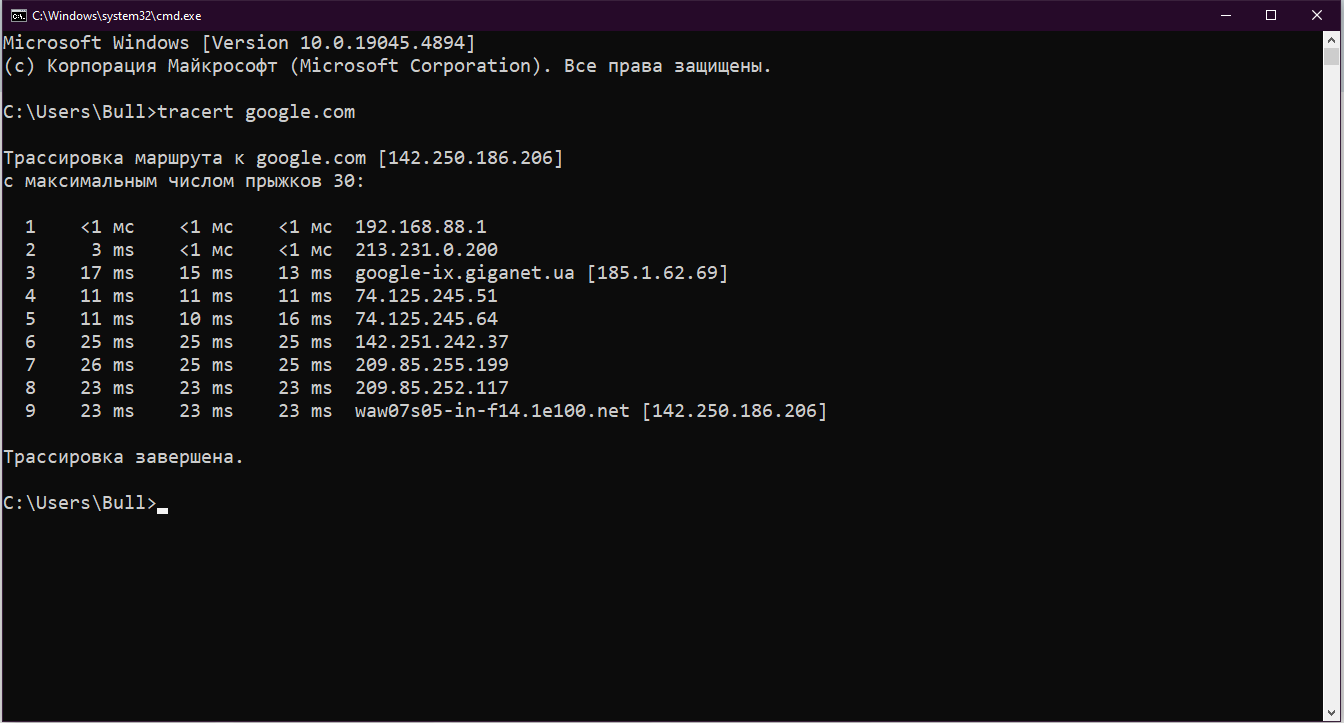
The first node is the local IP address.
Route tracing always starts from your router. It has a local IP address (for example, 192.168.88.1) that is assigned to devices on your home network. It shows how long it takes for data to travel from your computer to the router. These are usually the lowest latency values.
The second step is the external IP address of the Internet service provider.
After passing through the router, the data is sent to the first server owned by the internet service provider. This server is located outside your home network and its IP address is external. So, by going to IP 213.231.0.200, your data is sent to the global network. At this stage, the latency may increase slightly, but it remains low because the provider's server is usually located in your city or region.
The third stage is the backbone provider.
This is where your ISP connects to other large networks or services. In our example, this is the exchange point of the Giganet backbone provider with the Google-IX peering (IP 185.1.62.69).
The rest of the transitions: Google servers.
The next few hops, starting with IP addresses like 74.125.245.64, are part of Google's own network. This means that your data is already in the Google network and passes through several servers before reaching its final destination.
Each passage shows a delay on the way between these internal servers. These delays are usually minimal because Google's infrastructure is optimized to process requests quickly. But you need to understand that depending on the specific resource or server, delays can increase at this stage, and it will not depend on the provider.
Where can I find the IP address of my game's server?
To check ping or trace to a particular resource, you first need to find out the address of the server you are connecting to. If you do not have this information and cannot find it on the Internet, you can use the TCPView program.
It shows you which processes on your computer use the TCP protocol and which ports they are connected to. If a connection has changed routing, it is highlighted in yellow. The new connection is displayed in green, and the one that will be deleted is red.
First, launch the program and go to the desired game. The program can connect to several servers for different tasks: authorization, game traffic, chat, etc. To determine the main server, you need to look at the connection that is active throughout the game and sends the largest number of packets. This IP is most likely the game server.
For accuracy, you can check it against the official server lists if such information is available from the developers. It is important to measure the ping to each of the servers to detect delays.
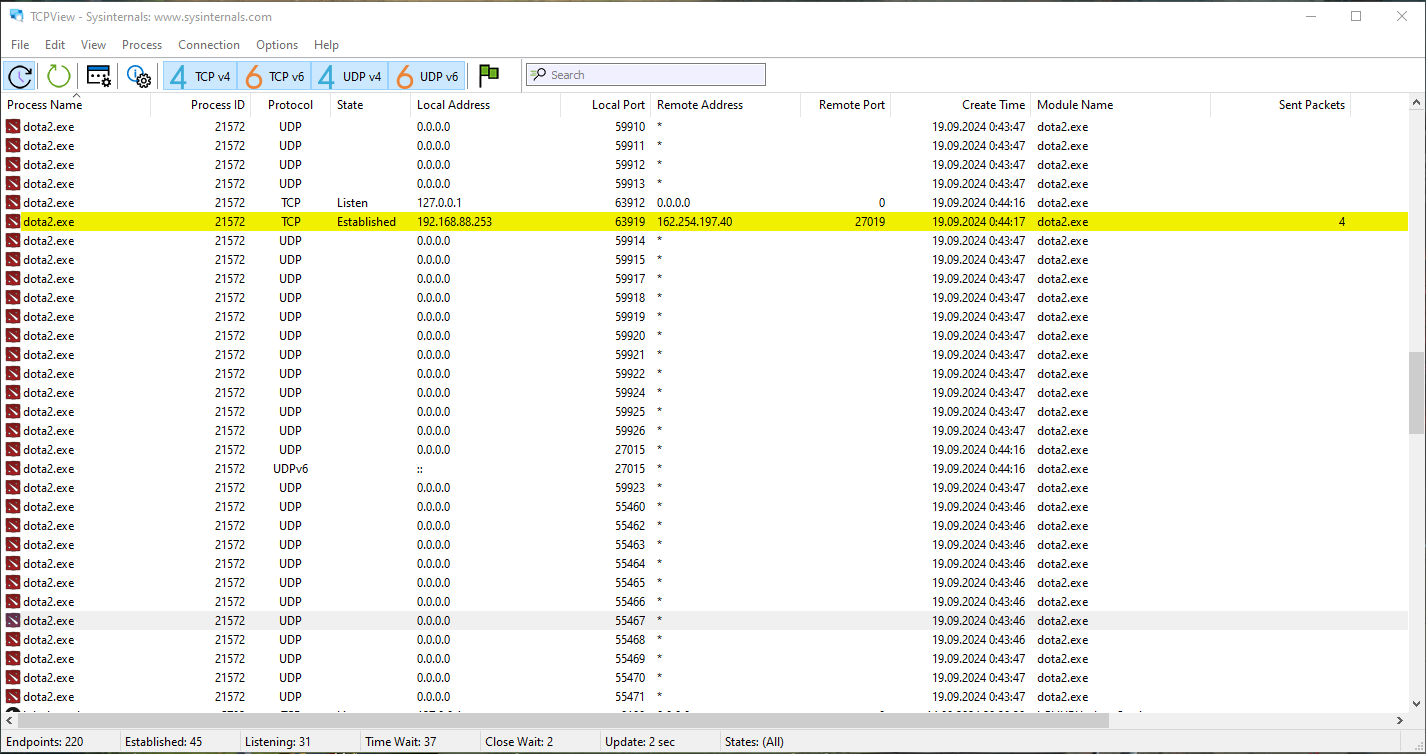
DOTA 2
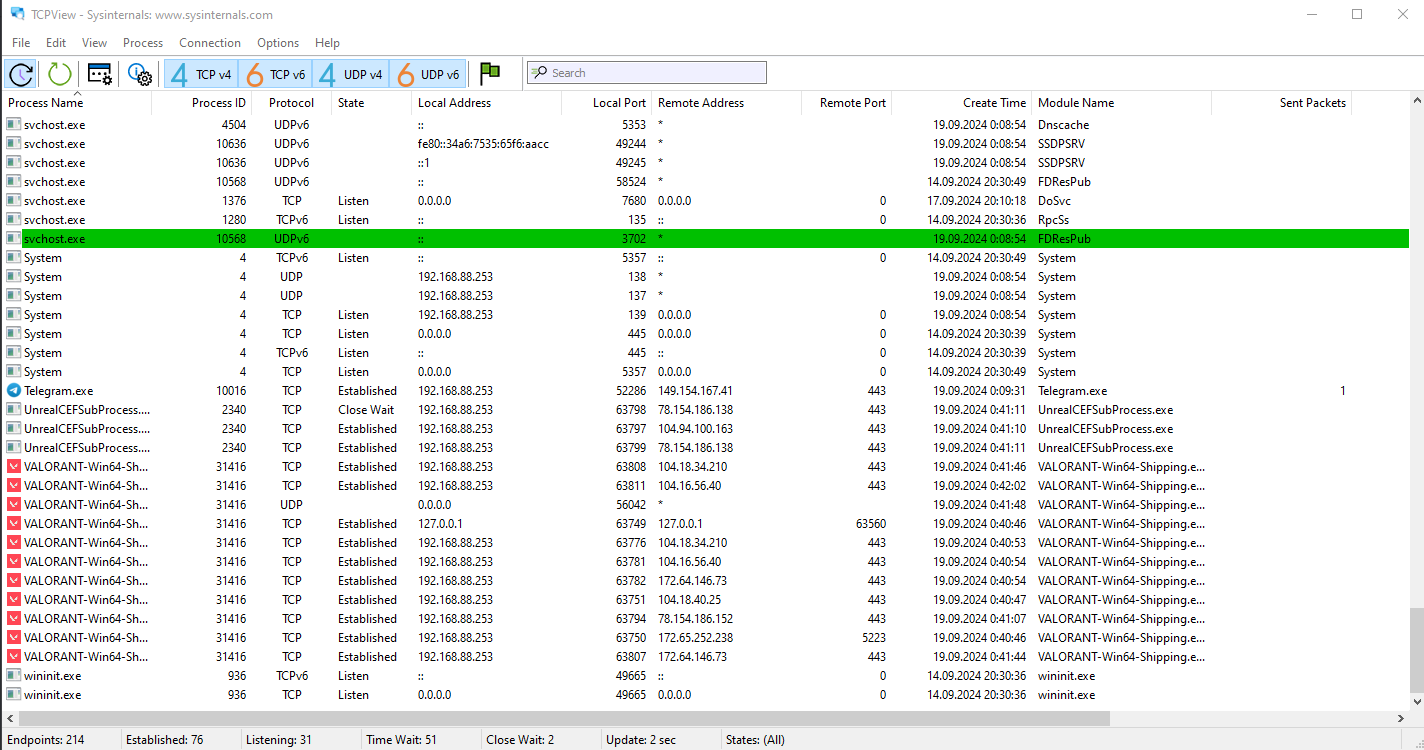
Valorant
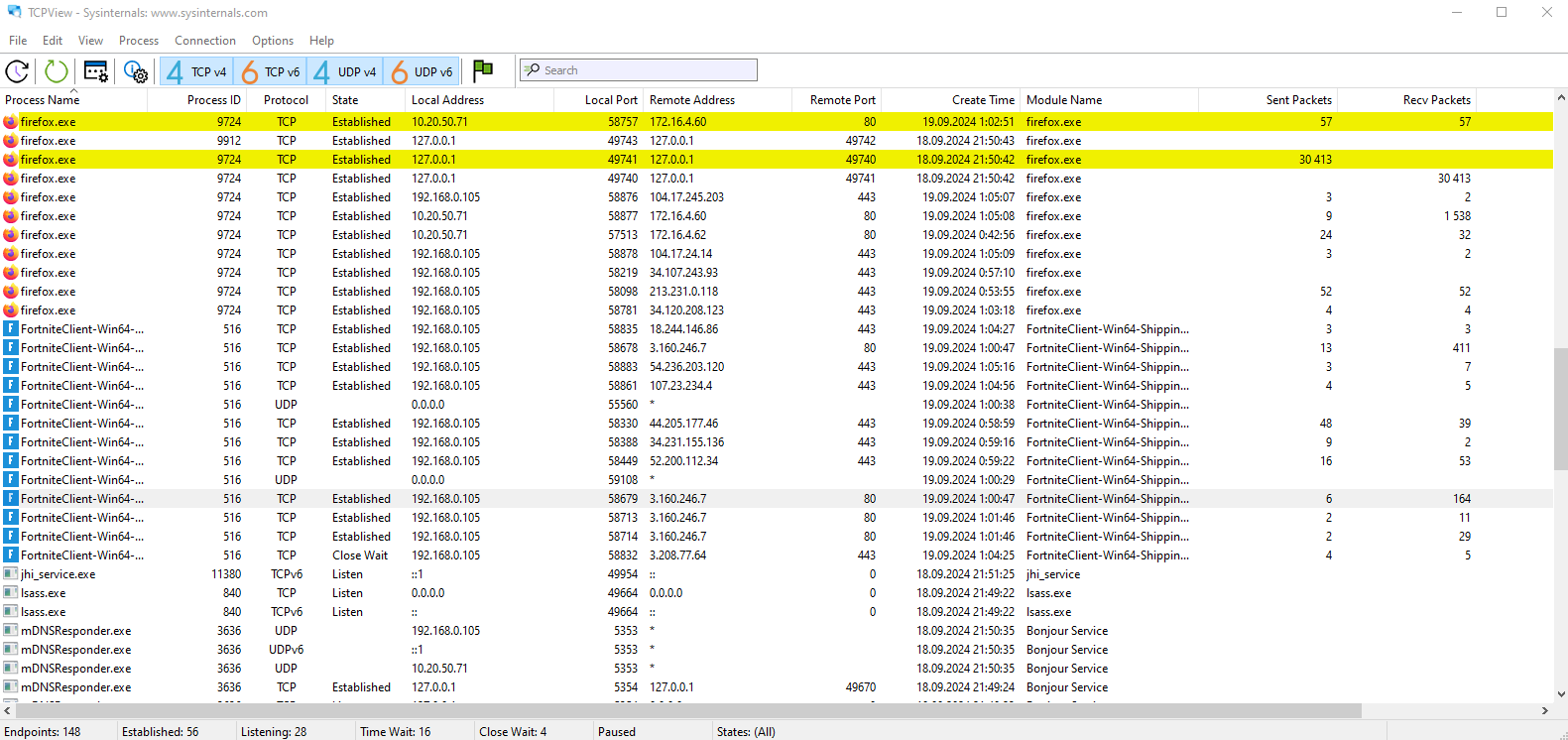
Fortnite
What is WINMTR and how can it help us?
WINMTR is a specialized tool for more detailed network diagnostics, in particular for checking latency to game servers. It shows you a visual representation of the signal path from your computer to the server, with all the hops and delays at each one marked.
This tool is analogous to the tracert command and is great not only for ping detection, but also for getting a complete picture of where and why connection difficulties are occurring.
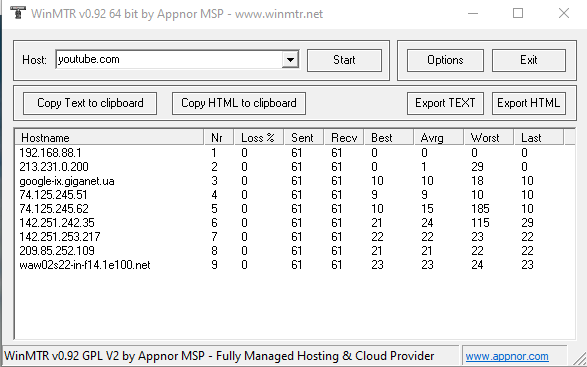
We recommend that you wait until the system sends at least 60-120 requests (Sent) (by default, 1 request per second). You can stop sending requests at any time by clicking the Stop button. The more requests sent, the more accurate the result.
If you experience High loss (Loss = 5% or more) or high latency (Avg = 350 or more), then this may be a cause for concern.
Help with the program interface:
Hostname - domain name or IP address of the node
Nr - the sequence number of the node in the route
Loss % - the percentage of lost response requests from this node
Sent - number of requests sent to this node
Recv - received responses from this node
Best - the smallest (best) delay time
Avrg - average delay time
Worst - the largest (worst) delay time
Last - delay time of the last received packet
How to reduce ping and what causes it?
Network card drivers
Outdated drivers can affect the performance of your network connection.
It's a good idea to check that you have the latest drivers for your network card to make sure your internet connection is as fast and stable as possible.
Connect via Wi-Fi or cable
Wireless networks can be subject to interference, which can cause packet loss and delays. If you're playing games, it's best to connect directly with an Ethernet cable to ensure a stable signal. Also, other users on your Wi-Fi network may be using part of the channel, which can increase ping.
Viruses and malware
Malware can use some of your Internet traffic for its own purposes, such as sending data to external servers. To keep your connection running smoothly, you should scan your system for viruses and malware from time to time.
Unnecessary programs
Programs such as Discord, Skype, torrent clients, browsers, or streaming services (video, music) can use some of your traffic. When you're playing games, it's best to disable these programs to free up more resources for a stable connection.
Using GPON and gigabit tariffs
GPON technology allows you to maintain a stable connection even when you are using it to its limit. Tariffs of 250 Mbps and higher are perfect for online gaming.
Why might it work better on other providers or mobile internet?
Many people say that if you have a bad ping, you should immediately complain to your Internet provider and, as a last resort, change it. This makes us wonder: why do different providers have different pings for the same resource?
Remoteness of servers
One of the main reasons for high ping is the remoteness of game servers. All online games run on servers that can be located in different countries or even on different continents. If you connect to a server that is far away from your location, it will definitely increase your ping. For example, if the game server is located in Asia and you are playing from Ukraine, your data has to travel a long way, crossing several countries, which leads to increased delays.
The provider is not responsible for the location of the game server. Even if you have the fastest internet at home, if the game server is far away, the ping will be high due to the geographical distance.
Different routes in Internet traffic
Another thing to think about is traffic routing. The Internet is a huge network consisting of many different nodes and channels. The traffic from your computer to the game servers passes through these nodes, which are called “hops”. Each hop is a point through which a signal passes, so the more hops there are, the higher the ping. Routes may change, so the ping to the same server from various providers will be different.
It is also worth noting that providers can use different backbone channels to transmit traffic. If one provider has better infrastructure or access to direct connections to certain regions, this can help reduce delays. On the other hand, if there are multiple nodes on the route or there are network delays, even the best provider will not be able to avoid increasing ping.
Different technologies for connecting to the Internet
The technologies used by providers also affect ping. For example, older technologies like ADSL or VDSL may have higher latency due to their technical limitations. These technologies use telephone lines that are less efficient for transferring data over long distances, especially when it comes to online gaming.
In contrast, we offer GPON connectivity, which provides much lower latency through the use of fiber optic cables and transmits data faster and with less loss of quality.
And what about the mobile Internet?
Some people claim that ping is better on mobile internet. This may be true in some cases, but the explanation is simple: the mobile Internet may be temporarily less busy, and providers can dynamically allocate resources. However, it's worth remembering that mobile internet is less stable and more susceptible to external factors such as network congestion or weather.
Mobile networks work well for browsing websites or social media, but they are often unstable for online gaming due to possible speed drops and higher packet loss. At the same time, even if the mobile Internet can temporarily show good ping, it will not provide the stability needed to play online games comfortably.
Conclusion
Try our tips for improving ping in games and share your results in the comments! Correct network diagnostics, using a cable connection by using modern technologies such as GPON, optimizing your router settings, and minimizing local interference will help you get a stable and fast connection. After that, you can easily enjoy a smooth gaming experience.
Receive information about promotions and news from BRIZ to your email address

Be the first to comment