


Blue interface TP-Link
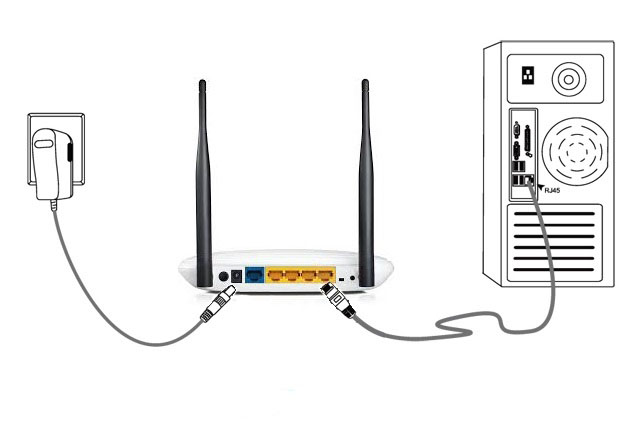
1. We connect the router to the computer using the cable supplied with the router. It is necessary to connect the cable to any yellow LAN port of the router and to the port of the computer's network card. Do not connect the internet cable to the router or computer until the setup is complete.
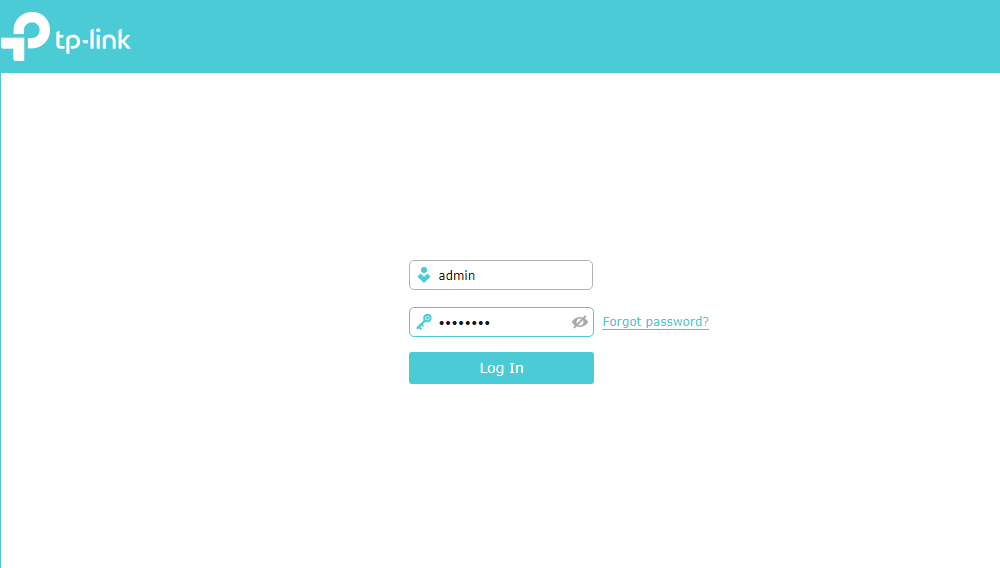
2. You need to open a browser on your computer and type the address http://192.168.0.1 or http://192.168.1.1. In the authorization page that opens, type in the fields of the username and password the word - admin.
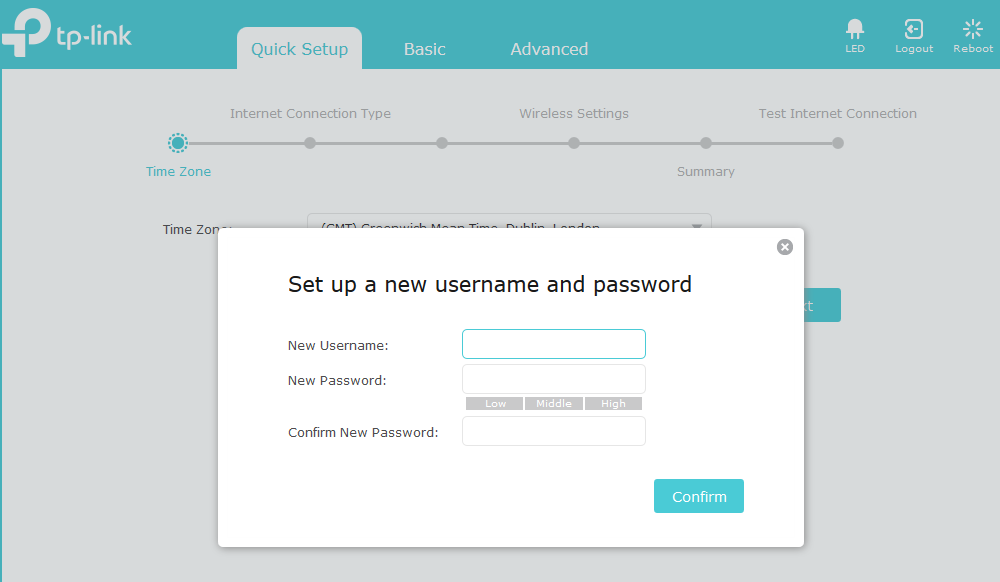
3. At the first authorization, the router may require you to set a new username and password to log into the router.
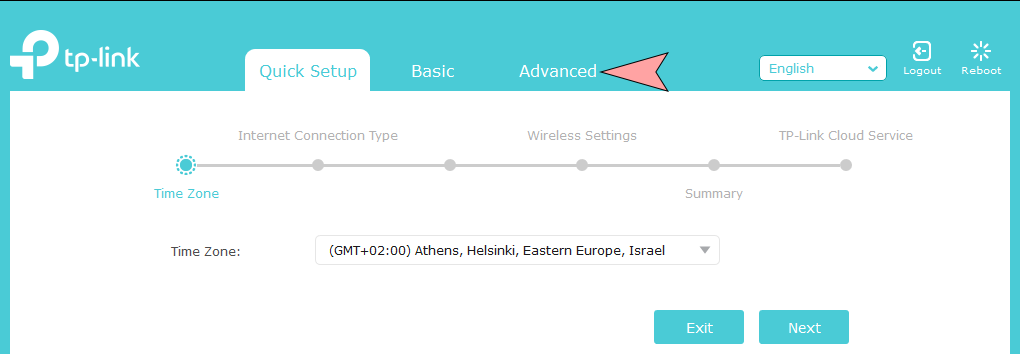
4. Next, go to the Advanced tab.
Internet connection setup
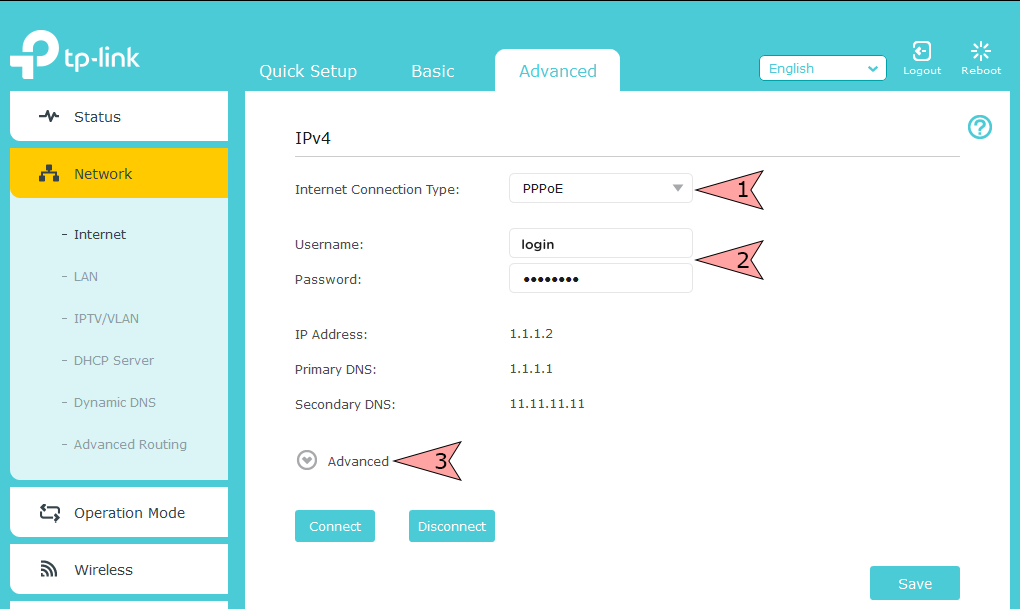
Go to the section Network - Internet.
- Select the Internet Connection Type - PPPoE / PPPoE.
- In the User Name fields, specify the login and in the Password field, specify the password from the Internet agreement.
- Expand the Advanced section.
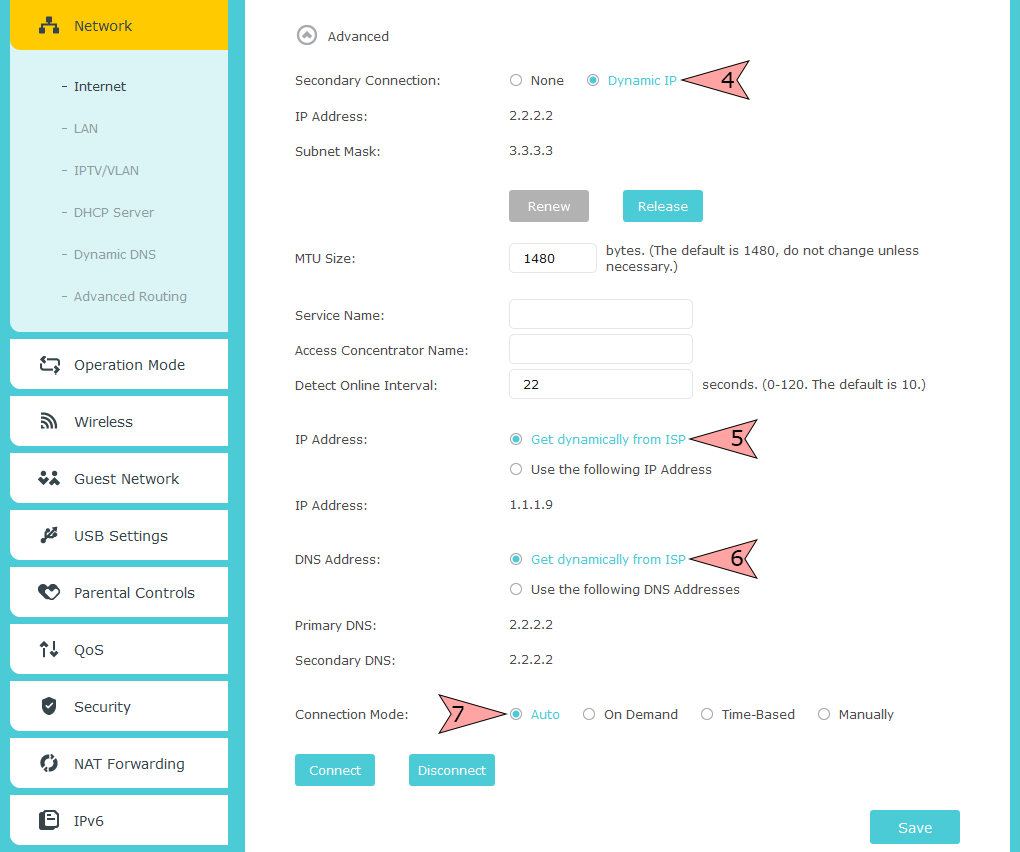
- In the Secondary Connection item, put the period Dynamic IP.
- IP Address (IP Address) put the point Get dynamically from ISP (Get dynamically from ISP).
- DNS Server Address (DNS Address) we put a point Get dynamically from ISP (Get dynamically from ISP).
- Connection mode (Wan Connection Mode) put the Auto point (Auto).
We save the changes by clicking the Save button.
Setting up a Wi-Fi wireless network
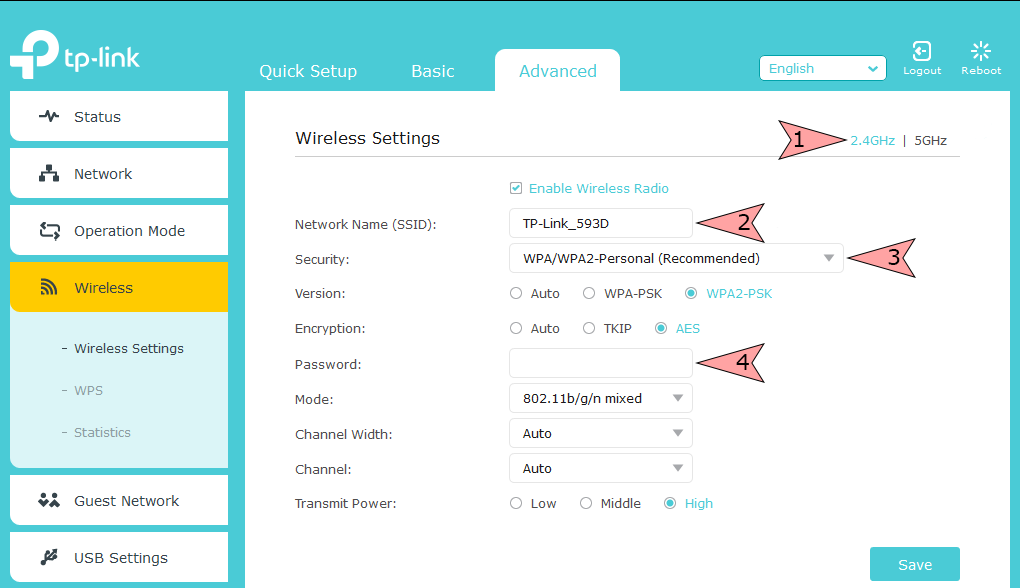
- 1. Go to the section Wireless - Wireless Settings. We select the network mode 2.4 GHz (2.4 GHz).
2. In the Network Name SSID field, set the desired name of the Wi-Fi network.
3. Set the WPA / WPA2 - Personal mode in the Security field and put dots in front of the WPA2-PSK and AES items.
4. Enter the desired password for your Wi-Fi network in the Password field (the password must be at least 8 characters).
We save the settings with the Save button.
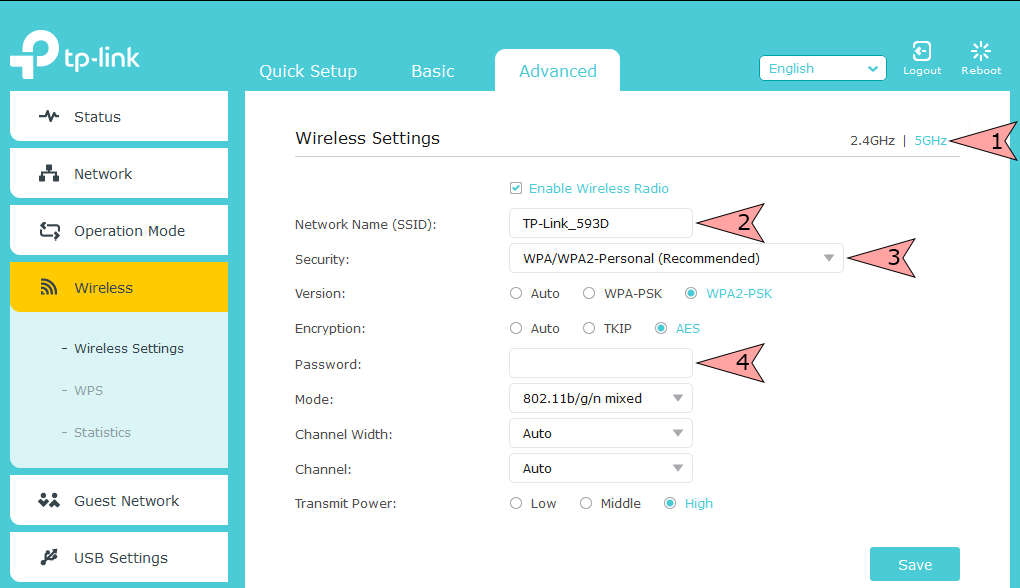
- 1. Let's select the network mode 5 GHz (5GHz).
2. In the Network Name SSID field, set the desired name of the Wi-Fi network.
3. Set the WPA / WPA2 - Personal mode in the Security field and put dots in front of the WPA2-PSK and AES items.
4. Enter the desired password for your Wi-Fi network in the Password field (the password must be at least 8 characters).
We save the settings with the Save button.
Changing the binding to the device
We connect the Briz cable to the WAN port of the router. Go to the Status section and in the Internet section you need to tell the support the value from the MAC Address field. Or you can change the MAC address yourself in your personal account.
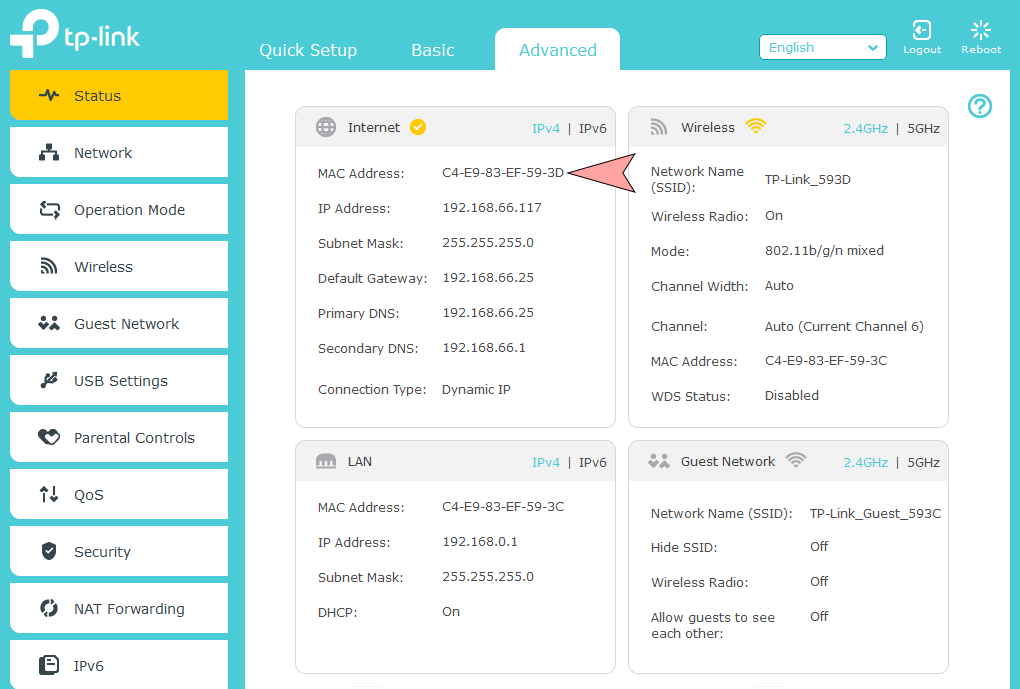
The router configuration is complete.
Assistant from «BRIZ» in Telegram
- View your account information;
- Register your device's MAC address yourself.